
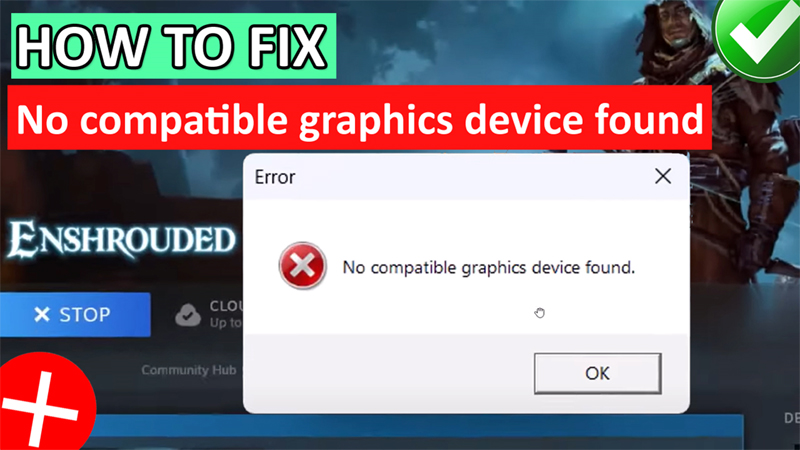
In This Article, You Will Learn How To Fix “No compatible graphics device found” In Enshrouded.
How To Fix “No compatible graphics device found” In Enshrouded
Fix 1. Update Graphics Card
To Update Nvidia Graphics Card:
- Go to: https://www.nvidia.com/en-us/geforce/geforce-experience/download/
- Click on Download Now.
- Open the app > Login or sign up > Drivers > Download.
To Update AMD Graphics Card:
- Go to: https://www.amd.com/en/support
- Click on “Download Windows Drivers”.
- Open the app > Follow the onscreen steps to update your graphics card.
Alternative Method To Update Your Graphics Card
- Right-click on Windows icon and click on “Device Manager”.
- Expand Display Adapters.
- Right-click on your Graphics card driver and click on “Update Driver”.
- Click on “Search automatically for drivers” and update it.
- Now Launch the game and check if the problem is solved or not.
Fix 2. Disable Integrated Graphics Card
- Right-click on Windows icon and click on “Device Manager”.
- Expand Display Adapters.
- Right-click on the integrated graphics card and select “Disable device” followed by “Yes”.
- Now, Launch Enshrouded and try to play it.
Fix 3. Run Enshrouded on Dedicated Graphics Card
- In Windows Search type “Graphics Settings” and open it.
- Click on “Browse” and add “enshrouded” app.
- To do this, go to Program Files (x86) > Steam > steamapps > common > Enshrouded folder.
- Select “enshrouded” and click on “Add”.
- Click on enshrouded and then on Option and select “High Performance” and then click on “Save”.
- Now, launch the game and see if your problem is fixed or not.
Fix 4. Rollback Graphics Card
- Right-click on Windows icon and click on “Device Manager”.
- Expand Display Adapters.
- Right-click on Right-click on your Graphics card driver and click on “Properties”.
- Go to “Driver” tab and click on “Roll Back Driver” and click “OK”.
- Launch the game and see if your issue is solved or not.
Fix 5. Update Windows To Latest Version
- Click on Windows icon and then click on Settings.
- On the left click on “Windows Update” and then click on “Check for updates”.
- If any update is available, then Download and install
Fix 6. Verify Integrity of Game Files
- Open Steam and go to Library.
- Right-click on Enshrouded and select “Properties”.
- Go to “Installed” tab and then click on “Verify integrity of game files”.
- Now, Check if your problem is solved or not.
If you have found this article helpful, then please share it as it can help others!
Please support us by subscribing to our YouTube Channel.
You May Also Like:

Max Field is a founder of Recover Android Data. He is an Android lover and loves to write tips, tricks, fixes for errors, data recovery solutions and more related to Android. Provide Gaming Tips, Tricks, Game Error/Issues Solutions (PC/Xbox/PlayStation/Mobile). He is now also interested in solving LinkedIn Puzzles. He has 12+ years of experience in this field.