
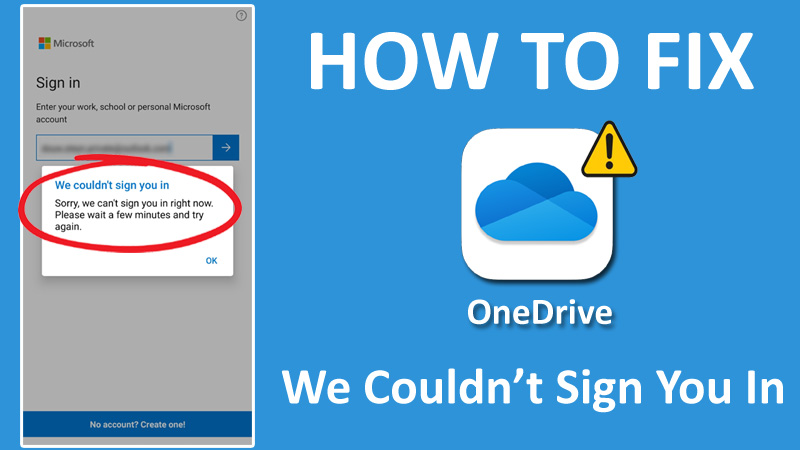
Are you facing issues while signing into OneDrive on your Android?
Login problems usually occur due to network or connection issues, but sometimes it fails to log into your account.
In such a case, you can try restarting your Wi-Fi, closing the application, and signing again.
However, many people have tried doing this but the error keeps showing.
In this guide, you will learn how to fix OneDrive “Unable to sign in” or “We Couldn’t sign you in. Try again later” error on Android.
Before we start fixing the problem, let’s check out what causes the OneDrive login issue.
Why Can’t I Sign Into My Onedrive Account On Android?
There could be many possibilities behind this issue and the most common ones are mentioned below.
- Glitches and bugs.
- Connections problems.
- Outdated app.
- Corrupted app data and cache.
Now that you have seen the reason behind the signing issue, let’s move on to the solution part.
How To Fix Can’t Sign Into OneDrive On Android
You should start with restarting your device and Wi-Fi.
If that doesn’t help, try clearing the app data and cache then try again.
Fix 1. Restart Your Device
The very first thing you can do when you face such type of error is restart the device. This seems a very basic solution but it can solve minor ongoing bugs and glitches.
You can also try restarting the app. What you have to do is when you encounter the login error, simply close the app, open it, and try again.
Also, make sure that you are inputting the correct login credentials.
Fix 2. Check Your Network Connection
Another thing that you should check is your network whether is working properly or not. Most of the time, login issues are caused by unstable or slow network connections.
A slow internet can take forever to log in to your account or might throw a login error. So, you are recommended to look out to your network before you try the below solution.
You can run a speed test to check your connection speed or you can simply restart your Wi-Fi once.
If you are using your Mobile data to log in to the OneDrive app, you can also try enabling and disabling Airplane mode.
Once you do this, open the app and check if you can log in into your OneDrive account or not.
Fix 3. Clear App Data & Cache
As we mentioned earlier, corrupted app data can also cause this type of issue. So, you should try clearing the app data and cache.
Here are the steps on how to clear OneDrive app data and cache.
- Go to your phone’s Settings and tap on Apps > Manage Apps.
- Here, look for OneDrive and tap on it once you find it from the list.
- Tap on Force Stop and then tap on Storage.
- Tap on Clear Cache > Clear Data.
Once done, open the app and input your login credentials.
If the issue persists, then move to the other fix.
Fix 4. Update OneDrive
If you have installed the outdated version of the OneDrive app and facing login issues, then you should try updating the app to the latest version.
There are chances that the previous version might have some bugs or glitches that are preventing you to sign into your account.
To update the app, follow the below steps.
- Open the Google Play Store and search for OneDrive.
- Tap on the app icon once, then tap on the Update button, if available.
Once the update process is done, try to log in to your account again.
Fix 5. Disconnect VPN (If Using)
If you have a habit of using a VPN and you are connected to a VPN during the login process, then you may encounter this error.
You have to temporarily disable the VPN to login to the OneDrive. Once you do this, you can easily log in to your account.
- Open the VPN app that you are using and tap on the Pause or Disconnect button.
Once you disable it, try to log into your account.
If you don’t face the login error, then it is confirmed that the culprit is the VPN and you have to temporarily disable it whenever you access your OneDrive account.
You can also try out any other VPN or server to check if it does not affect the functionality of the app.
Fix 6. Re-Install OneDrive
If you are still facing the login error and cannot sign into your OneDrive account, then you should try re-installing the app once.
First, you have to uninstall the app and then install it again from the Play Store.
However, if you are a Samsung user, you cannot delete the OneDrive app. In such case, you can just clear the app’s cache and data and you are done.
If you are an Android user other than Samsung, you have complete access to uninstall and reinstall it.
This is how you can do it.
- In the home screen, look for OneDrive, then tap and hold it until some option appears.
- Tap on the Trash icon (Uninstall or Delete) > OK.
- Next, go to Play Store and search for OneDrive.
- Tap on the Install button and wait for it to install.
Once it’s installed on your device, open it and try to log in to your account.
Wrap Up
OneDrive is a cloud service provided by Microsoft that allows users to keep files, sync, or share files online.
With OneDrive, you can access your files or data anytime, no matter where it is kept.
It is also available on Android and iOS, so you can access your OneDrive account via the Android app.
In this guide, we have covered the login issue with the OneDrive Android app.
We recommend, try using any other Android device to check if it’s an app-related problem or if the problem is within your specific device.
If you found this guide helpful, then make sure to share it with others.
You May Also Like: