
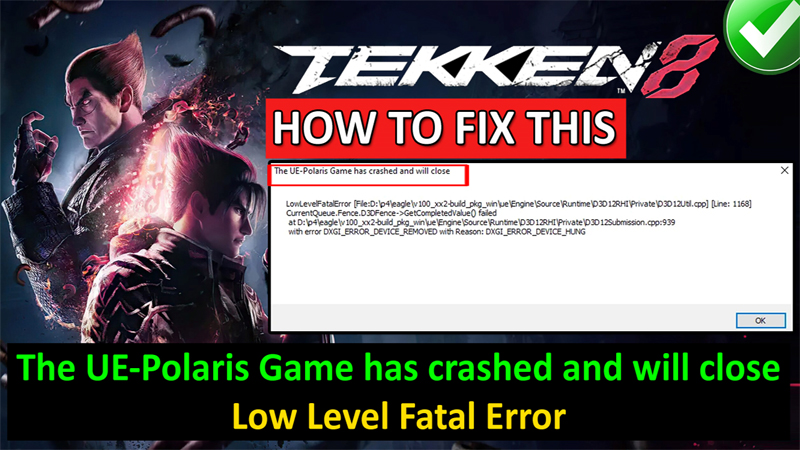
In This Article, You Will Learn How To Fix “The UE-Polaris Game has crashed” in Tekken 8 or How To Fix Tekken 8 Low Level Fatal Error on PC.
How To Fix “The UE-Polaris Game has crashed” in Tekken 8
Fix 1. Update Graphics Card Driver Manually
- For NVIDIA: https://www.nvidia.com/en-us/geforce/drivers/
- For AMD: https://www.amd.com/en/support
- Select your correct Graphics card driver and update it.
- After updating the Graphics card driver, launch Tekken 8 and see if it fixes your problem or not.
Alternative Method To Update Your Graphics Card
- Right-click on Windows icon and click on “Device Manager”.
- Expand Display Adapters.
- Right-click on your Graphics card driver and click on “Update Driver”.
- Click on “Search automatically for drivers” and update it.
- Now Launch the game and check if the problem is solved or not.
Fix 2. Allow Tekken 8 Through Firewall/Antivirus
- On your PC, click on “Windows” icon and click on Settings.
- On the left, click on “Privacy & security” and then click on “Firewall and network protection”.
- Click on “Allow an app through firewall”.
- Click on “Change settings” and then click on “Allow another app”.
- Then click on “Browse” and add Tekken 8.exe and Polaris-Win64-Shipping.exe app to the list.
Tekken 8.exe is located at: Program Files (x86) > Steam > steamapps > common > TEKKEN 8 folder.
Polaris-Win64-Shipping.exe is located at: Program Files (x86) > Steam > steamapps > common > TEKKEN 8 > Polaris > Binaries > Win64 folder.
Also, if you have any third-party antivirus program installed, then disable it for a while.
Fix 3. Run Tekken 8 as an Admin
- Open Steam. Right-click on “Tekken 8” and click on Manage > Browse local files.
- In the opened Window, right-click on “TEKKEN 8.exe” file and select “Properties”.
- Go to “Compatibility” tab and tick mark “Run this program as an administrator”.
- Then click on “Apply” and “OK”.
Fix 4. Verify Integrity of Game Files
- Open Steam and go to Library.
- Right-click on Tekken 8 and select “Properties”.
- Go to “Installed” tab and then click on “Verify integrity of game files”.
- Now, check if your problem is fixed or not.
Fix 5. Modify Tekken 8 Game Launch Options
- Open Steam. Right-click on Tekken 8 game and select “Properties”.
- In the Launch Options, type “-dx11” and close the tab.
- Now, launch the game and check if it solves your issue or not.
- If not, then type “-dx12” in the Launch Options and then check.
Fix 6. Update Windows
- Click on Windows icon and then click on Settings.
- On the left click on “Windows Update” and then click on “Check for updates”.
- If any update is available, then Download and install
- Restart your PC and then launch the game.
Fix 7. Install Visual C++ Files
Go to: https://learn.microsoft.com/en-US/cpp/windows/latest-supported-vc-redist?view=msvc-170
- Scroll down and download and install both X86 and X64 Visual C++ Files and install it.
- Restart your PC.
- Launch Tekken 8 and see if the problem is solved or not.
Fix 8. Run Tekken 8 on Dedicated Graphics Card
- In Windows Search type “Graphics Settings” and open it.
- Click on “Browse” and add “TEKKEN 8.exe” app.
- To do this, go to Program Files (x86) > Steam > steamapps > common > TEKKEN 8 folder.
- Select “TEKKEN 8.exe” and click on “Add”.
- Click on TEKKEN 8 and then on Option and select “High Performance” and then click on “Save”.
- Again, click on “Browse” and go to Program Files (x86) > Steam > steamapps > common > TEKKEN 8 > Polaris > Binaries > Win64 folder.
- Select “Polaris-Win64-Shipping.exe” and click on “Add”.
- Click on TEKKEN 8 (2nd one) and then on Option and select “High Performance” and then click on “Save”.
Now, launch the game and see if your problem is fixed or not.
Fix 9. Increase Virtual Memory
- Click on Windows icon and click on “Settings”.
- On the left side, click on “System” and then click on “Advanced system settings”.
- From the Advanced tab, under Performance, click on Settings.
- Go toAdvanced tab, under Virtual Memory, click on Change.
- Uncheck‘Automatically manage paging file size for all drives’.
- Select yourWindows drive (usually C:).
- Choose ‘Custom size’ and set the ‘Initial size’ and ‘Maximum size’ to higher values recommended by Windows.
For example, if your PC Installed RAM is 16GB, then enter the value as follows:
- Initial Size (MB): 24576
- Maximum Size (MB): 49152
If your PC Installed RAM is 8GB, then enter the value as follows:
- Initial Size (MB): 12288
- Maximum Size (MB): 24576
Click ‘Set’ and then ‘OK’.
Restart your computer for the changes to take effect.
Fix 10. Uninstall and Re-Install Tekken
- If all fixes fail, then uninstall Tekken 8 game from your device.
- Delete Tekken 8 game files and folders.
- Restart your device and fresh re-install Tekken 8.
- Hope this might help.
If you have found this post helpful, then please share it as it can help other users!
Please support us by subscribing to our YouTube Channel.
You May Also Like:
- How To Fix Pending Transaction Error In Steam
- How To Fix Steam “Captcha Not Working” Error
- How To Fix Steam Games Not Launching

Max Field is a founder of Recover Android Data. He is an Android lover and loves to write tips, tricks, fixes for errors, data recovery solutions and more related to Android. Provide Gaming Tips, Tricks, Game Error/Issues Solutions (PC/Xbox/PlayStation/Mobile). He is now also interested in solving LinkedIn Puzzles. He has 12+ years of experience in this field.