
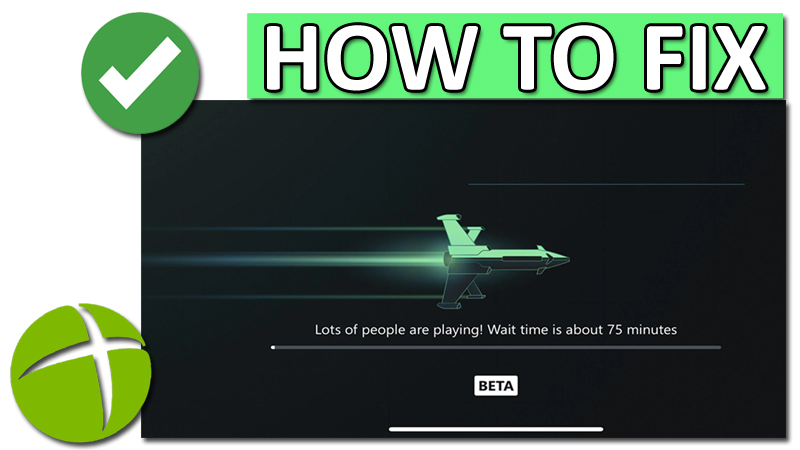
Are you frustrated with the high wait time with Xbox Cloud gaming?
Are you seeing “Sorry we’re currently experiencing long queue wait times” or ‘Lots of people are playing’ on your screen and the game does not load?
Is your Xbox Cloud gaming not working?
If “Yes”, then no need to worry about it. You are not alone; many people are experiencing this issue.
In this article, you will learn how to fix Xbox High Wait Time with Cloud Gaming or how to fix Xbox Cloud gaming is not working issue.
How To Fix Xbox High Wait Time With Cloud Gaming
To fix Xbox high wait time with Cloud gaming, you can follow these solutions:
- Update Xbox App
- Repair and Reset Xbox
- Using Language and Date Time Settings
- Uninstall and Re-install Gaming Service
Fix 1. Update Xbox App
- Open Microsoft Store.
- Search for “Xbox”.
- Click on “Update” button if any are available.
Note: If it shows “Open” button to you then it means your Xbox is up-to-date, hence skip this fix.
Fix 2. Repair and Reset Xbox
- On your PC, go to Settings > Apps > Installed Apps > Search for Xbox.
- Click on “3 horizontal dots” and then click on “Advanced options”.
- Scroll down and click on “Repair”.
- Then click on “Reset”.
Now close everything and restart your PC. Then launch the Xbox and see if the problem is solved or not.
Fix 3. Using Language and Date Time Settings
Using Language Settings
- On your PC, go to Settings > Time & Language > Language & region.
- Change the language to the opposite one (for example: from English (India) to English (United States).
Tip: If another language is not available, then click on “Add language” button and add your language.
Using Date & Time Settings
- On your PC, go to Settings > Time & Language > Date & Time.
- Select different time zone other than your current time zone.
- After this, check if your problem is fixed or not.
Fix 4. Uninstall and Re-install Gaming Service
- Using Windows Search, search for PowerShell.
- Right-click on Windows PowerShell and then click on Run as administrator.
- Copy and paste this command and hit ENTER:
get-appxpackage Microsoft.GamingServices | remove-AppxPackage -allusers
Once that command process completes, copy-paste below command and hit ENTER:
start ms-windows-store://pdp/?productid=9MWPM2CQNLHN
It will then open Microsoft Store that will tell you to install “Gaming Service”, simply click on “Get” button and wait for the installation to complete.
Once completed, launch Xbox and see if the high wait time with cloud gaming or Xbox cloud gaming not working problem is fixed or not.
If you have found this post helpful, then please share it as it can help other users!
Please support us by subscribing to our YouTube Channel.
You May Also Like:
- How To Fix Xbox App for PC Not Installing
- How To Fix Voice Chat Not Working on Modern Warfare 3 on Xbox
- How To Fix “Login Failed” Error In Fortnite on Xbox
- How To Fix Error Code 0x80D02017 on Microsoft Store (Dec 2023)

Max Field is a founder of Recover Android Data. He is an Android lover and loves to write tips, tricks, fixes for errors, data recovery solutions and more related to Android. Provide Gaming Tips, Tricks, Game Error/Issues Solutions (PC/Xbox/PlayStation/Mobile). He is now also interested in solving LinkedIn Puzzles. He has 12+ years of experience in this field.