
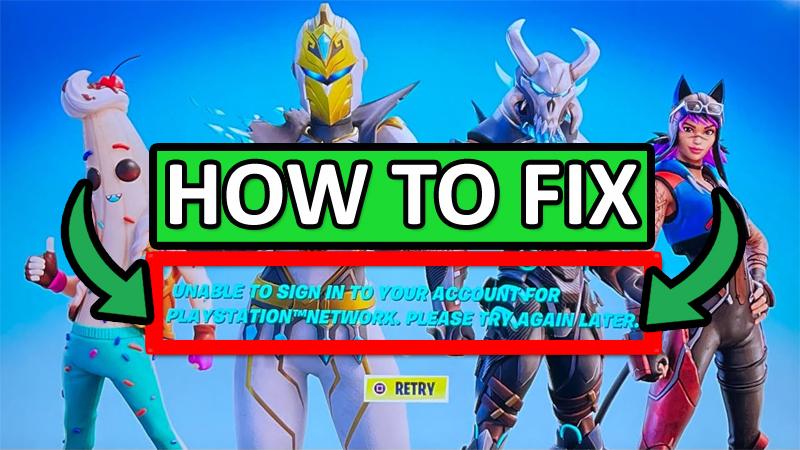
Are you seeing the Unable to sign in to your account for PlayStation Network Fortnite error?
If “Yes”, then you are not alone, there are many players out there encountering this issue on PS5 and PS4. This problem started to occur after the update.
The full error is shown as follows:
“UNABLE TO SIGN IN TO YOUR ACCOUNT FOR PLAYSTATION NETWORK.
PLEASE TRY AGAIN.
RETRY”
In this article, you will learn how to fix “Unable to sign in to your account for PlayStation network” In Fortnite.
How To Fix Fortnite “Unable to sign in to your account for PlayStation network” Error
To fix Fortnite “Unable to sign in to your account for PlayStation network” error you have to follow these solutions:
- Check Fortnite Server Status
- Close Fortnite and Re-open It
- Reset Your Internet
- Update Fortnite
- Adjust Your DNS Settings
- Rebuild PlayStation Database
- Uninstall and Re-Install Fortnite
Fix #1. Check Fortnite Server Status
Go to – https://status.epicgames.com/.
Or go to – https://downdetector.com/status/fortnite/.
Or check the official Fortnite Status Twitter Page – https://twitter.com/fortnitestatus.
If you find that the Fortnite server is down or having an outage, then you have to wait until it is fixed by the Fortnite developer team.
Fix #2. Close Fortnite and Re-open It
This is the very first step you must take.
- Just close the Fortnite game.
- Wait for a few seconds and then re-launch it.
- Check if the problem is solved.
Fix #3. Reset Your Internet
- Unplug the internet connection, whether you are using a modem or router.
- Wait for 30-40 seconds and then plug it back in.
- This will reset the internet.
- Try to log in to Fortnite on PlayStation and see if the issue is fixed.
Fix #4. Update Fortnite
- On your controller press the PlayStation button.
- Select Fortnite and press Options button on your controller.
- Select “Check for update” from the drop-down menu and update it.
- After the update, launch Fortnite and try to log in.
Fix #5. Adjust Your DNS Settings
On your PS5 or PS4 go to Settings menu > Network > Set Up Internet Connection.
As per your connection type, select Wi-Fi or LAN.
- IP address setting – Automatic.
- DHCP Host Name – Do Not Specify.
- DNS settings – Manual.
- Primary DNS – 8.8.8.8
- Secondary DNS – 8.8.4.4
- MTU settings – Automatic.
- Proxy server – Do not use.
Fix #6. Rebuild PlayStation Database
- Power off your PlayStation.
- Press and hold the power button on your console for 7 seconds (when you hear two beeps, release the button).
- Now, connect your controller to your console with the use of a USB cable and then press the PlayStation button.
- Select Rebuild Database > OK.
- Launch Fortnite and check if the issue is solved.
Fix #7. Uninstall and Re-Install Fortnite
- On your controller press the PlayStation button.
- Select Fortnite and press Options button on your controller.
- Select Delete > OK.
- Now, re-install Fortnite from the PlayStation Store.
Wrap Up
So, these are the solutions that you can follow to fix unable to sign in to your account for PlayStation network Fortnite error.
If you have found this post helpful, then please share it as it can help other players!
Please support us by subscribing to our YouTube Channel.
You May Also Like:
- How To Fix “Login Failed” Error In Fortnite on Xbox
- How To Fix Athena Crash Reporter In Fortnite
- How To Fix Fortnite Servers Not Responding
- Fortnite Guide For Beginners: 12 Tips for Your First Match

Max Field is a founder of Recover Android Data. He is an Android lover and loves to write tips, tricks, fixes for errors, data recovery solutions and more related to Android. Provide Gaming Tips, Tricks, Game Error/Issues Solutions (PC/Xbox/PlayStation/Mobile). He is now also interested in solving LinkedIn Puzzles. He has 12+ years of experience in this field.