
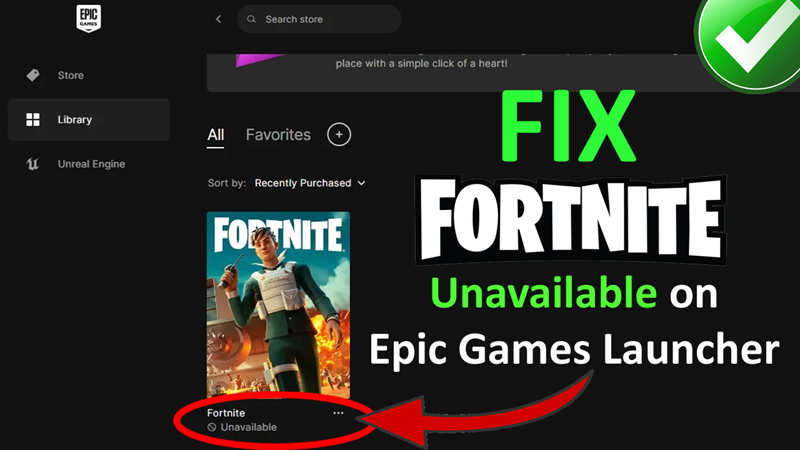
In This Article, You Will Learn How To Fix Fortnite Unavailable on Epic Games Launcher.
How To Fix Fortnite Unavailable on Epic Games Launcher
Fix 1. Run Epic Launcher as an Admin & Reset Vault Location
1.1. Run Epic Launcher as an Admin
- First close Epic Game Launcher from Task Manager.
- Right-click on “Epic Launcher” and select Open File Location.
- Right-click on “exe” and select “Properties”.
- Go to “Compatibility” tab.
- Tick mark “Run this program as an administrator”.
- Click on “Apply” and then “OK”.
1.2. Reset Vault Location
- Launch Epic Game Launcher.
- Click on your Profile icon and select “Settings”.
- Scroll down and click on “Edit Vault Cache Location”.
- Click on “Reset” and then click on “Apply”.
- Now see if your problem is solved or not.
Fix 2. Clear Cache Files of Epic Games & Fortnite
First close Epic Games completely.
On your Keyboard press “WIN + R” button together to open “RUN”.
In the RUN box type “%localappdata%” and hit ENTER.
Select and delete these folders:
- EpicGames
- EpicGamesLauncher
- FortniteGame
Now check problem is solved or not.
Fix 3. Click on 3 Dots Next To Fortnite Game
- As per some players, it is a Fortnite game bug.
- Open Epic Launcher.
- Click on 3 dots next to Fortnite.
- This will fix the issue.
Or
- Click on 3 dots next to Fortnite.
- Click Manage > Apply.
- It should reset and this will fix the issue
If you have found this post helpful, then please share it as it can help other users!
You May Also Like:
- How To Fix Fortnite Stuck at Connecting Screen
- How To Fix Fortnite “An Unexpected Error Occurred while Signing in to your Account for Xbox Live”
- How To Fix “Unable to sign in to your account for PlayStation network” In Fortnite
- How To Fix Fortnite Server Offline Error

Max Field is a founder of Recover Android Data. He is an Android lover and loves to write tips, tricks, fixes for errors, data recovery solutions and more related to Android. Provide Gaming Tips, Tricks, Game Error/Issues Solutions (PC/Xbox/PlayStation/Mobile). He is now also interested in solving LinkedIn Puzzles. He has 12+ years of experience in this field.