
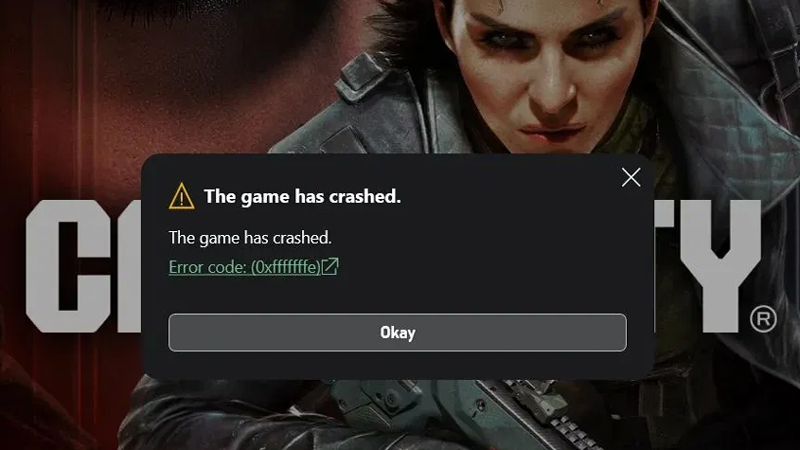
Call of Duty: Black Ops 7, released in late 2025, is a futuristic (2035) FPS featuring a 4-player co-op campaign, 18-map multiplayer, and round-based Zombies. It continues the story of David Mason in a reality-bending conflict against a tech giant, while introducing enhanced omnimovement, chain-wall jumping, and a “Cradle” bio-weapon plot.
In This Article, You Will Learn How To Fix Call of Duty Black Ops 7 Error Code 0xfffffffe The Game Has Crashed on PC (Game Pass Users).
Fixes For Black Ops 7 Error Code (0xfffffffe) The Game Has Crashed on PC
Fix 1. Repair Call of Duty
- Open Windows Settings.
- On the left click on Apps and then click on Installed apps on the right.
- Search for Call of Duty and then click on 3 vertical dots next to the Call of Duty and then click on Advanced options.
- Now, scroll down and under Reset, you will see Repair option. So, click on Repair and let the repair completes.
- After this go ahead launch the game and check.
Fix 2. Reset Call of Duty
- Open Windows Settings.
- On the left click on Apps and then click on Installed apps on the right.
- Search for Call of Duty and then click on 3 vertical dots next to the Call of Duty and then click on Advanced options.
- Now, scroll down and under Reset, you will see Reset option. So, click on Reset and let the reset completes.
- After this go ahead launch the game and check.
Fix 3. Run The Game as Admin
- Open Xbox app on your PC.
- Select Call of Duty game and then select 3 horizontal dots next to it and then click on Manage.
- Go to Files tab and then click on Browse. This will open the game installation folder.
- Open Call of Duty > content folder.
- Right-click on cod exe file and select Run as administrator and see if this fix the error or not.
Fix 4. Verify and Repair The Game
- Open Xbox app on your PC.
- Select Call of Duty game and then select 3 horizontal dots next to it and then click on Manage.
- Go to Files tab and then click on Verify and repair.
- After the repair completes, launch the game and check.
Fix 5. Uninstall and Re-Install Call of Duty Black Ops 7
If still your problem is not solve, then consider re-installing the Call of Duty game on your PC. Though this is time consuming solution, but it is a worth trying.
If you have found this post helpful, then please share it as it can help other users!
Further Readings:
- Fix Call Of Duty Mobile Log In Issue Due To Authorization Error
- How To Fix Call of Duty Mobile Lag On Android And Play It Smoothly
- How To Fix Arknights Endfield Download Error

Max Field is a founder of Recover Android Data. He is an Android lover and loves to write tips, tricks, fixes for errors, data recovery solutions and more related to Android. Provide Gaming Tips, Tricks, Game Error/Issues Solutions (PC/Xbox/PlayStation/Mobile). He has 11+ years of experience in this field.