

MX Player is a famous video player app that is used to watch movies, videos and hearing music online and offline. Many Android users like to watch movies, videos on their phones with subtitles.
Subtitles help users to understand those languages which they don’t know. MX Player provides their users to add subtitles. If you also want to add subtitles to MX Player but don’t know how to do it? Keep Calm! In this article, you will learn how to add subtitles to MX Player.
Also Read: Recover Deleted or Lost Videos From Android
Why Use Subtitles On Android?
There are many reasons why you should add subtitles while watching movies.
- Some people do not watch those movies which they can’t understand. Subtitles help those users to know the language of that movie.
- In some movies, there are some short sections in other languages. For example, if you are watching an English movie and in a short scene it is in Arabic language then on that time subtitle helps you to understand that scene.
- Sometimes, the audio of the movie isn’t clear and it creates problems to understand certain actors. Subtitles help you in this situation also.
Now, let us learn the steps to enable subtitles to MX Player.
Steps To Enable Subtitle To MX Player
Step 1: Open MX Player and then hit on Menu option (3 vertical dots).
Step 2: Now, find the Subtitle option and tap on it.
Step 3: Then you will find the subtitles option menu. From there, choose Enable subtitle to add subtitles.
Also Read: Restore Deleted Dropbox Files Or Folders Within/After 30 Days
Open Subtitle In A Video, Movie Or Web Series In MX Player
It is compulsory that the subtitle file store on your local storage. If you have that subtitle file on your laptop or PC then switch it to your smartphone with the help of a USB cable. You must transfer the subtitle file to the same folder with the same name as your video has. If you don’t do this then it becomes a little difficult to browse and open the subtitle file.
For example, if the video’s name is “ABC” then the subtitle file name should be “ABC”.
Below, follow the steps to open and add subtitles to MX Player:
Step 1: Launch MX Player on your Android device and then open a video, web series or movie that you want to watch.
Step 2: Next tap on the “Menu” which is three dots at the top-right corner of the screen.
Step 3: Tap on “Subtitle” option.

Step 4: Tap on “Open“.
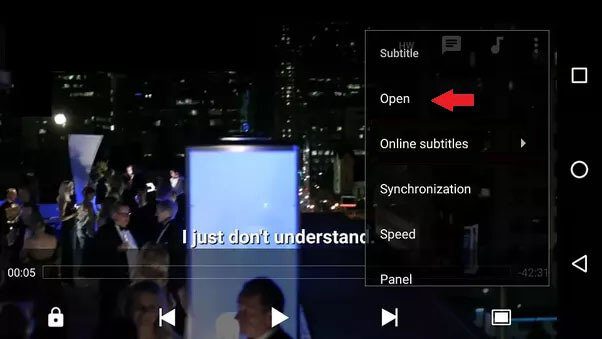
Step 5: Now, browse the folder where you have transferred the subtitles files and select it.

Congratulations! You have successfully added subtitles to your video, movie or web series in MX Player.
Note: You can follow the same steps to add subtitles in MX Player in PC/Laptop or Mac. However, the setting option may differ.
You May Also Like:
- Huawei Safe Folder Recovery – Recover Hidden Files From Safe Folder
- How To Unlock Phone Password Using CMD (Command Prompt)
- How To Recover WhatsApp Messages Deleted By Sender On Android
- How To Recover Lost or Deleted Files From SHAREit App
Downloading Subtitles From The Web Player
If you don’t have a subtitle file then you can download it online. You can do this from MX Player. On the video playback screen, find and tap on the three dots. Go to three dots > Menu > Subtitle option > Online Subtitles.

Now, you can view the search option on the Online Subtitle option. Simply search which subtitle file you wish and the search result will show you many subtitles file related to your search. Download desired subtitle file or you can save all the subtitle formats related to your search.
Now, you can easily download and watch the movie or video with subtitles by using the online subtitle option.
Wrap Up
I hope this article was helpful for you and you have learned how to add subtitle to MX Player. I have discussed how to enable subtitles in MX Player, how to download subtitles from the Web Player and add subtitles in MX player online as well as how to open and add subtitles in MX player locally.
If you liked this tutorial, please spread the love by sharing it.
Please support us by subscribing to our YouTube Channel.

Max Field is a founder of Recover Android Data. He is an Android lover and loves to write tips, tricks, fixes for errors, data recovery solutions and more related to Android. Provide Gaming Tips, Tricks, Game Error/Issues Solutions (PC/Xbox/PlayStation/Mobile). He is now also interested in solving LinkedIn Puzzles. He has 12+ years of experience in this field.