How To Fix Spotify Wrapped 2024 Not Showing

How To Fix Spotify Wrapped 2024 Not Showing

How To Fix Spotify Wrapped 2024 Not Showing

2024 is going to end in a few days and all those who use the Spotify music app are waiting for the Wrapped which shows you the artists or songs you most listened to.

It includes stories such as “Top 5 Songs”, “Minutes Listened”, and “Top 5 Artists”.

You can view your personalized wrapped in the Spotify app or visit spotify.com/wrapped.

But there are some Spotify users whose Spotify Wrapped 2024 not showing up or working on their smartphone.

Read more

How To Delete HelloTalk Account

How Do I Delete HelloTalk Account

How Do I Delete HelloTalk Account

HelloTalk is an online social learning app that allows you to communicate with users of native countries.

You can either make a call or text them using the app.

However, some users have lost interest in using the HelloTalk app. To protect your data, it is important to delete your account in HelloTalk if you no longer use it.

Read more

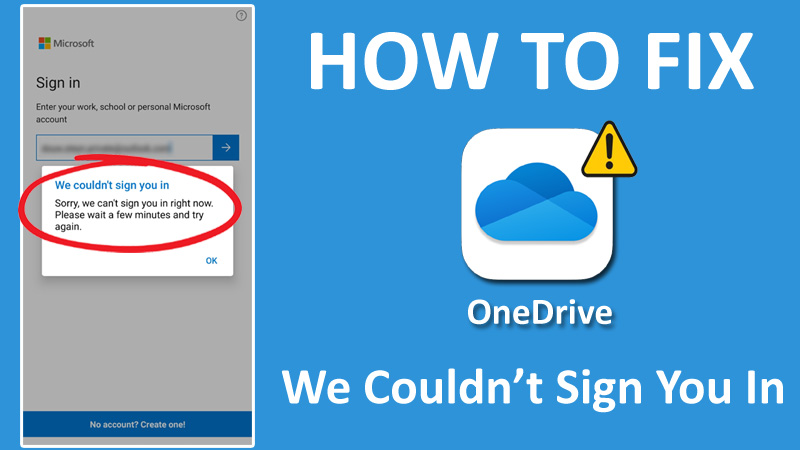
How To Fix Can’t Sign Into OneDrive On Android

How To Fix Can’t Sign Into OneDrive On Android

How To Fix Can’t Sign Into OneDrive On Android

Are you facing issues while signing into OneDrive on your Android?

Login problems usually occur due to network or connection issues, but sometimes it fails to log into your account.

In such a case, you can try restarting your Wi-Fi, closing the application, and signing again.

However, many people have tried doing this but the error keeps showing.

In this guide, you will learn how to fix OneDrive “Unable to sign in” or “We Couldn’t sign you in. Try again later” error on Android.

Before we start fixing the problem, let’s check out what causes the OneDrive login issue.

Why Can’t I Sign Into My Onedrive Account On Android?

There could be many possibilities behind this issue and the most common ones are mentioned below.

  • Glitches and bugs.
  • Connections problems.
  • Outdated app.
  • Corrupted app data and cache.

Now that you have seen the reason behind the signing issue, let’s move on to the solution part.

How To Fix Can’t Sign Into OneDrive On Android

You should start with restarting your device and Wi-Fi.

If that doesn’t help, try clearing the app data and cache then try again.

Fix 1. Restart Your Device

The very first thing you can do when you face such type of error is restart the device. This seems a very basic solution but it can solve minor ongoing bugs and glitches.

You can also try restarting the app. What you have to do is when you encounter the login error, simply close the app, open it, and try again.

Also, make sure that you are inputting the correct login credentials.

Fix 2. Check Your Network Connection

Another thing that you should check is your network whether is working properly or not. Most of the time, login issues are caused by unstable or slow network connections.

A slow internet can take forever to log in to your account or might throw a login error. So, you are recommended to look out to your network before you try the below solution.

You can run a speed test to check your connection speed or you can simply restart your Wi-Fi once.

If you are using your Mobile data to log in to the OneDrive app, you can also try enabling and disabling Airplane mode.

Once you do this, open the app and check if you can log in into your OneDrive account or not.

Fix 3. Clear App Data & Cache

As we mentioned earlier, corrupted app data can also cause this type of issue. So, you should try clearing the app data and cache.

Here are the steps on how to clear OneDrive app data and cache.

  • Go to your phone’s Settings and tap on Apps > Manage Apps.
  • Here, look for OneDrive and tap on it once you find it from the list.
  • Tap on Force Stop and then tap on Storage.
  • Tap on Clear Cache > Clear Data.

Once done, open the app and input your login credentials.

If the issue persists, then move to the other fix.

Fix 4. Update OneDrive

If you have installed the outdated version of the OneDrive app and facing login issues, then you should try updating the app to the latest version.

There are chances that the previous version might have some bugs or glitches that are preventing you to sign into your account.

To update the app, follow the below steps.

  • Open the Google Play Store and search for OneDrive.
  • Tap on the app icon once, then tap on the Update button, if available.

Once the update process is done, try to log in to your account again.

Fix 5. Disconnect VPN (If Using)

If you have a habit of using a VPN and you are connected to a VPN during the login process, then you may encounter this error.

You have to temporarily disable the VPN to login to the OneDrive. Once you do this, you can easily log in to your account.

  • Open the VPN app that you are using and tap on the Pause or Disconnect button.

Once you disable it, try to log into your account.

If you don’t face the login error, then it is confirmed that the culprit is the VPN and you have to temporarily disable it whenever you access your OneDrive account.

You can also try out any other VPN or server to check if it does not affect the functionality of the app.

Fix 6. Re-Install OneDrive

If you are still facing the login error and cannot sign into your OneDrive account, then you should try re-installing the app once.

First, you have to uninstall the app and then install it again from the Play Store.

However, if you are a Samsung user, you cannot delete the OneDrive app. In such case, you can just clear the app’s cache and data and you are done.

If you are an Android user other than Samsung, you have complete access to uninstall and reinstall it.

This is how you can do it.

  • In the home screen, look for OneDrive, then tap and hold it until some option appears.
  • Tap on the Trash icon (Uninstall or Delete) > OK.
  • Next, go to Play Store and search for OneDrive.
  • Tap on the Install button and wait for it to install.

Once it’s installed on your device, open it and try to log in to your account.

Wrap Up

OneDrive is a cloud service provided by Microsoft that allows users to keep files, sync, or share files online.

With OneDrive, you can access your files or data anytime, no matter where it is kept.

It is also available on Android and iOS, so you can access your OneDrive account via the Android app.

In this guide, we have covered the login issue with the OneDrive Android app.

We recommend, try using any other Android device to check if it’s an app-related problem or if the problem is within your specific device.

If you found this guide helpful, then make sure to share it with others.

You May Also Like:

How To Fix Wi-Fi Name Not Showing Issue on Android

How To Fix Wi-Fi Authentication Problem on Android

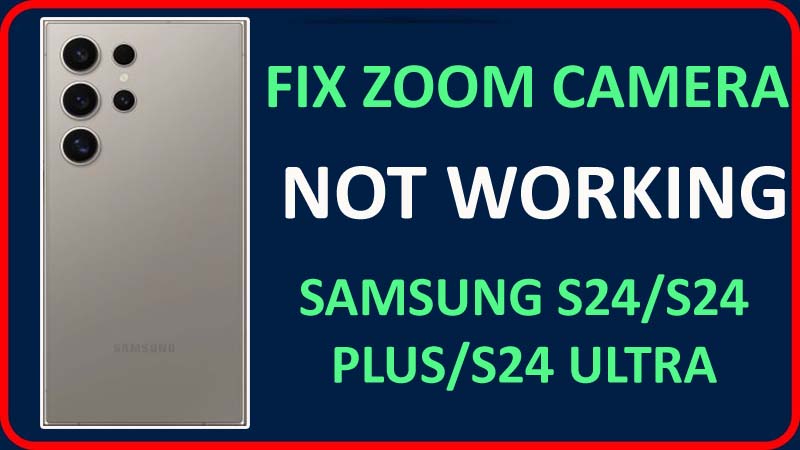
Fix Samsung S24/S24 Plus/S24 Ultra Zoom Camera Not Working

Fix Samsung S24,S24 Plus, or S24 Ultra Zoom Camera Not Working

Fix Samsung S24,S24 Plus, or S24 Ultra Zoom Camera Not Working

The camera quality of Samsung Galaxy S24, S24 Plus, or S24 Ultra is superb but there are some users who are facing problems while zooming the camera lens to 3X, 5X, or up to 30X.

If you also face a camera zooming-related problem then, you have landed on the right webpage. Here I will provide you with some solutions to fix Samsung S24/S24 Plus/S24 Ultra zoom camera not working issue.

But before discussing the solutions to fix the camera zoom issue it is important for you to first know the reasons behind this problem.

Causes: Why is Camera Zoom Not Working On Samsung Galaxy S24, S24+, Or S24 Ultra?

There could be several reasons why you may encounter zoom problems on your Samsung Galaxy S24 series phone.

Here we have mentioned some of the common reasons:

  • When the operating system of your Galaxy phone is not updated.
  • If you have messed with the phone’s camera settings.
  • When dust particles are available on the camera lens.
  • If you have pending updates for the installed apps.
  • When the camera lens of your device is damaged or faulty.

How To Fix Zoom Camera Not Working On Samsung S24, S24 Plus, Or S24 Ultra

Here we have discussed some possible methods to solve the camera zoom issue in Galaxy S24, S24+, or S24 Ultra.

Fix 1: Install Latest Samsung Firmware Update

If the majority of the Samsung S24 series users reported the zooming issue then the Samsung team would bring the latest update to solve this issue.

So, you should first check the OS update for your Samsung S24, S24 Plus, or S24 Ultra. And if you find the latest update then simply download and install it to solve the issue.

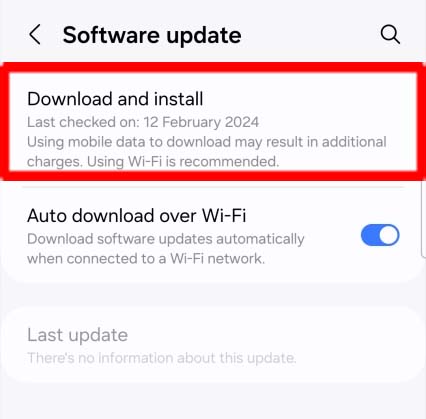
Here are the steps to install the OS update for the Samsung S24 series phone to fix the video zoom issue with the default camera app:

  • Open the Settings app on your Galaxy device.
  • After this, tap on Software Update.
  • If you find the latest update then tap on Download and Install button.

Update Samsung S24, S24 Plus, Or S24 Ultra Software

After this, restart your device and check whether the camera zooming problem is solved or not.

Fix 2: Use Zoom Function In Safe Mode

If the zoom problem is not fixed after the update then you can boot your Samsung Galaxy S24, S24 Plus, or S24 Ultra phone into safe mode.

This mode will disable all the third-party apps except the default apps like the Camera app. If you can use the zoom function then it is sure that the recently installed camera app or other apps were interfering with the default camera app.

Hence, to solve the issue you need to uninstall the recent uninstall the apps.

Fix 3: Reset Camera App Settings

If there are some bugs with camera app settings or if you have messed with it then also you may face the Zoom camera not working issue on Galaxy S24+, S24, or S24 Ultra.

So, to fix it you need to reset the Camera app settings:

  • Open the Camera app on your phone.
  • Then go to on Camera Settings.
  • Now, look for Reset Settings option and tap on it.
  • Next, tap on Reset.

After this, restart the camera app. Now, check the Zoom feature of your device’s camera.

Fix 4: Check Dust Particles On Camera Lens

If your phone’s camera lens is covered with dust particles or lint then you might encounter a camera zoom bug issue on your device as it will disturb the lens lightning.

So, you need to clean it with the help of a soft cotton cloth. But if the dust or debris has been entered in the internal part of the camera or inside the camera lens, then in that case you need to visit the nearest service center and ask them to clean it.

Fix 5: Force Stop Camera App

You can force-stop the camera app to solve the zooming issue on the Galaxy phone’s camera.

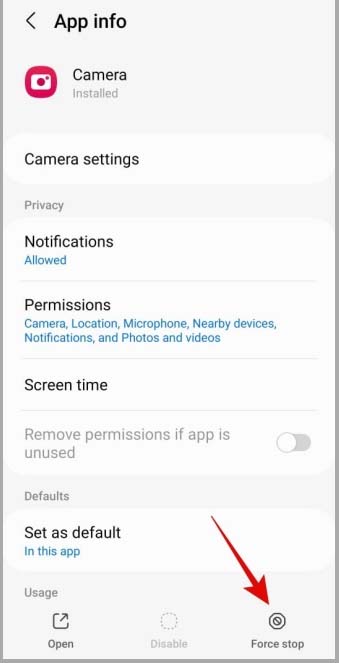
Here are the steps to force stop Samsung S24/S24 Plus/S24 Ultra phone:

Step 1: Open the Settings app on your phone.

Step 2: Then tap on Apps.

Step 3: After this, find the Camera app and tap on it.

Step 4: Now, tap on the Force Stop button.

Force Stop Camera App on Samsung S24, S24 Plus, or S24 Ultra

After this, try to click a photo using the zoom function to check it if working properly or not.

Fix 6: Clear Camera App Cache & Data

You can factory reset the camera app to solve the zoom camera not working issue on Samsung S24 series.

Here, follow the steps to clear the cache and data of the Camera app:

  • On your phone, open the Settings app.
  • Then go to Apps.
  • Now, find the Camera app from the list of apps and tap on it.
  • After this, tap on Storage & Cache.
  • Next, tap on Clear All data.

Fix 7: Factory Reset Your Samsung Device

If you have tried all the above-listed solutions but are still unable to take a clear photo using the Zoom function then in this case you can factory reset your phone.

Note: This process will erase all the saved data from your device. Hence, you are requested to create a backup of your phone data in a safe place and then follow the steps to reset your phone.

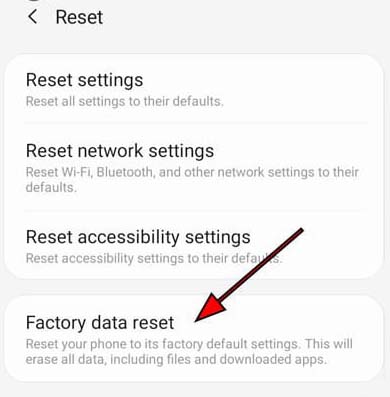
Below, follow the steps to factory reset your Samsung S24 (Plus) (Ultra) phone:

  • Navigate to Settings > General Management.
  • After this, tap on Reset.
  • Next, hit on factory data reset.

Factory reset Samsung S24, S24 Plus, or S24 Ultra

  • Now, tap on Reset.
  • Then, hit on Delete all.
  • If asked enter your PIN or password.

Fix 8: Contact Samsung Support

If the above methods don’t work then it might be possible that there is some hardware problem on your phone’s camera and to solve it you need to contact Samsung support or take your device to the nearby service center.

If your phone is still running on warranty period then you can ask for a replacement or a free repair.

Wrap Up

Well, these were the 8 different methods to fix the Samsung S24/S24 Plus/S24 Ultra zoom camera not working. We hope that any one of the solutions has worked for you and now you can take a clear picture using the zoom feature.

If you have liked this guide then don’t forget to share it with others so that it can also help them.

You May Also Like:

How To Fix Google Pixel 8a Charging Problem

Fix Google Pixel 8a Charging Problem

Fix Google Pixel 8a Charging Problem

Have you kept your Google Pixel phone on charging but it won’t charge or charges very slowly? This situation can be very frustrating for any user. But you don’t need to worry as there are some DIY methods that you can try to fix Google Pixel 8a charging problem before you rush to the service center.

Read more