
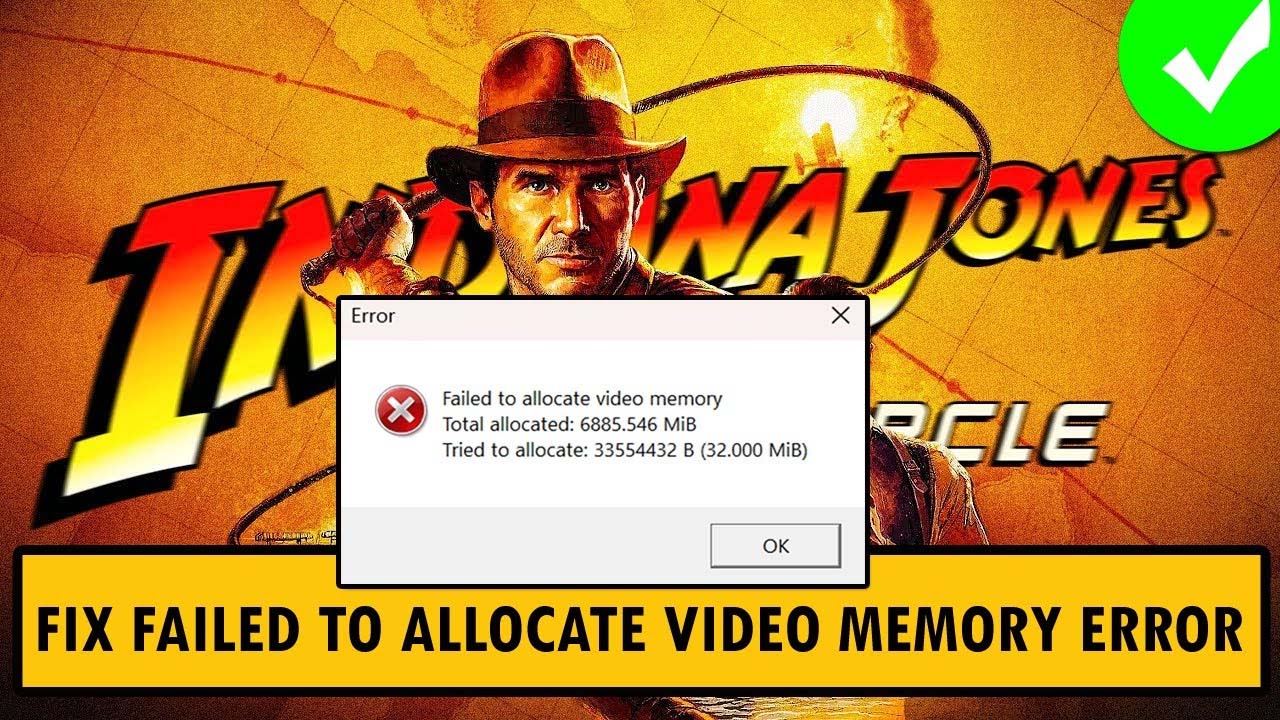
Are you encountering the error message “Failed to allocate video memory” in Indiana Jones And The Great Circle game? If yes and you wish to fix this error as soon as possible so that you can enjoy playing the game. Here, you will find 6 different and easy ways to fix error “Failed to allocate video memory” In Indiana Jones And The Great Circle.
Before moving to the solutions, let’s first look at the possible causes behind the error message.
Reasons: Why You Are Getting “Failed to allocate video memory” Error Message In Indiana Jones And The Great Circle?
The error message can occur due to multiple factors, some of them are listed below:
- Incorrect Page File Size.
- Wrong Settings.
- Weak hardware.
- Temporary bugs.
How To Fix Indiana Jones And The Great Circle “Failed to allocate video memory” Error
Here we have listed some methods to fix the frustrating issue in the game.
Way 1: Update Your Graphics Card
For AMD Graphics Card:
If you have an AMD graphics card then follow the below steps to update it:
- Go to – https://www.amd.com/en/support.
- After this, click on the Download button to download it.
- Next, open the app.
- Now, follow the on-screen steps to update your graphics card.
For Nvidia Graphics Card:
If you have a Nvidia graphics card, then follow the below steps to update it:
- Go to – https://www.nvidia.com/en-us/geforce/geforce-experience/download/.
- After this, hit on Download Now
- Next, open the app.
- Now, you need to log in to it.
- Then tap on Drivers.
- At last, hit on Download.
Way 2: Add Game To Nvidia GeForce Experience
Step 1: First download Nvidia GeForce experience from here – https://www.nvidia.com/en-us/geforce/geforce-experience/download/.
Step 2: Now, open it and log in to your account.
Step 3: Click “Graphics” and then hit on 3 dots.
Step 4: Next, click on “Add a program”.
Step 5: Now find and add Indiana Jones and the Great Circle app (e.g. C:\Program Files (x86)\Steam\steamapps\common\TheGreatCircle).
Way 3: Run The Game On A Dedicated Graphics Card
- In Windows Search find “Graphics settings” and then press Enter.
- Now add a desktop app by clicking on “Add desktop app” or “Browse”.
- Next, go to “C:\Program Files (x86)\Steam\steamapps\common\The Great Circle”.
- Click ““TheGreatCircle” app and add it.
- Now, scroll down and enlarge “Indiana Jones and the Great Circle”.
- At last, choose “High Performance”.
Way 4: Downgrade Nvidia Graphics Card
- In Windows Search find “Device Manager” and then press Enter.
- Now, expand “Display adapters” to know the graphics card that you have.
- Next, go to https://www.nvidia.com/en-us/geforce/drivers/ and find your graphic card model.
- Download and install GeForce Game Ready Driver – WHQL released on 12 November.
Way 5: Delete “RUNE” Folder
- Open the File Explorer.
- Go to This PC and then click on Windows (C).
- Navigate to Users > Public > Public Documents > Steam.
- Now, delete the “RUNE” folder.
Way 6: Delete “TheGreatCircleConfig.local” File
- Open the File Explorer.
- Go to This PC and then click on Windows (C).
- After this, move to Users > Your Username > Saved Games.
- Click on MachineGames > TheGreatCircle > base.
- Now, delete the “local” file.
Conclusion
So, there were 6 easy and effective ways to fix error “Failed to allocate video memory” in Indiana Jones and the Great Circle. Besides that, you have also become familiar with the reasons why this error occurs.
If this guide has helped you then you can share it with others so that it can help them.
You May Also Like:
- How To Fix Last Epoch Stuck on Connecting and Cannot Login
- How To Fix “Experiences failed to load” In Roblox [2024]
- How To Fix Marvel Rivals Stuck At 0% Or 99% Loading Bug
- Fix Wuthering Waves Crashing/Stuck on Loading Screen

Max Field is a founder of Recover Android Data. He is an Android lover and loves to write tips, tricks, fixes for errors, data recovery solutions and more related to Android. Provide Gaming Tips, Tricks, Game Error/Issues Solutions (PC/Xbox/PlayStation/Mobile). He is now also interested in solving LinkedIn Puzzles. He has 12+ years of experience in this field.