

It is frustrating when your iPhone keyboard works slowly or unresponsive to your taps. However, many iPhone users have reported that their keyboard started lagging after the iOS 18 or 17 update.
If you are also going through the same problem then read this guide, here you will find some tested methods to fix iPhone keyword lagging after iOS 18 update.
Why Is Your iPhone Keyboard Lagging After iOS 18 Update?
Though, the iPhone doesn’t lag and it always responds to your touches and taps within the shortest possible time.
However, if your keyboard is unresponsive, there could be some reasons behind it.
The causes are as mentioned:
Incorrect Keyboard Settings: If you have made the the wrong keyboard settings, it will delay printing your entry.
Software Glitch: If the latest iOS update is buggy or glitchy and due to this your iPhone may malfunction or display errors including Keyboard lagging.
Hardware Problems: Some hardware issues like broken screens, and damaged flex can also lead to keyboard lagging issues.
So, these are some of the important reasons Why your phone is so laggy after iOS 18.
Now, we will look at the solutions to fix keyboard lag after iOS 18.
How To Fix iPhone Keyword Lagging After iOS 18
Here we have listed some tested and easy ways to solve the lagging issue on the iPhone keyboard.
So, let’s discuss them one by one.
Method 1: Force Restart Your iPhone
The first solution you should follow to fix iPhone keyboard slowness or lagging issue is force restarting your iPhone.
Here are the steps that you need to follow to force restart your iPhone:
On iPhone 8 Or Later: Tap and quickly release your grip on the Volume Up button. Then tap and quickly leave the Volume Down button. Next, press and hold the Side key until you see the Apple logo on the phone’s screen.
On iPhone 7 Or iPhone 7 Plus: Press and hold the Side + Volume Down button for a few seconds until the Apple logo is displayed on the screen.
On iPhone 6S Or Lower: Press and hold both Home + Power buttons together until the Apple logo appears on the screen.
Method 2: Close All Background Apps
If there are so many apps running in the background, this can slow down the operation of your iPhone and lead to Keyboard lagging problems.
So, to solve the error, you need to close all background apps:
- Open the Settings app on your iPhone.
- Then tap on General.
- Look for “Background App Refresh” and tap on it.
- After this, hit on the arrow beside “Background App Refresh”.
- Now, tap on Off to turn off background apps.
Method 3: Reset Keyboard Dictionary
Another way to solve the keyboard lagging issue on iPhone is by resetting the keyboard on iOS 18.
Doing this will clear dictionary conflicts and restore the operation of your keyboard so that it will start working at the optimal level again.
Here learn how to reset the keyboard dictionary:
Step 1: Open the Settings app.
Step 2: Then hit on General.
Step 3: Next, tap on Reset.
Step 4: After this, hit Reset Keyboard Dictionary.
Step 5: Now, enter your password and hit Reset Dictionary.
Method 4: Turn On Reduce Motion
Reduce Motion is a feature that helps to manage the movement of specific elements on your iPhone’s screen.
You enable this feature to solve the problem that may be causing keyboard lags on iPhone.
Here, follow the steps to enable Reduce Motion:
- Open the Settings app on your smartphone.
- Scroll down and tap on Accessibility.
- Next, tap on Motion and then hit on Reduce Motion.
- Then, drag the slider next to Reduce Motion to turn green, and then the feature will be automatically activated.
Method 5: Disable Predictive Keyboard
Have you enabled a predictive keyboard on your iPhone? If yes this can also slow down your iPhone keyboard.
So, you can disable it to solve the issue.
Here are the steps to turn off the Predictive Keyboard:
- Navigate to Settings > General.
- After this, tap on the Keyboard.
- Scroll down and toggle off “Predictive keyboard”.
Now, try to write something to check whether the keyboard is working fine or not. If not, then move to the next solution.
Method 6: Delete 3rd Party Keyboards
If you use third-party keyboards then this can slow down your device and trigger the keyboard to lag. If this is the case, then you need to switch to the default iPhone Keyboard. And then, you can also remove the keyboard from your iPhone keyboard list.
Here, follow the steps to do the same:
- Navigate to Settings > General.
- Then, tap on the keyboard.
- Choose Keyboard at the top.
- Next, tap on Edit at the top right.
- Now, tap on the red round icon on the left side of the 3rd party keyboard.
- At last, hit on Delete to remove the keyboard.
Method 7: Contact Apple Support
If the above solutions are not helping then you can Contact Apple Support. They will provide you with some tips to resolve the problem that you are currently facing.
Though the iPhone keyboard lagging or not responding issue is a software problem, it should not take them more time to solve the issue.
Method 8: Factory Reset Your iPhone
If you have tried all the above-mentioned solutions but still the problem is not resolved then you can factory reset your device to solve the issue.
However, this will wipe all your device data. Ensure to back up your iPhone.
Now, follow the below steps to factory reset your iPhone:
- Go to Settings > General.
- After this, tap on Transfer or Reset iPhone.
- Next, tap on Reset.
- At last, tap on Reset All Settings. If asked enter the passcode and follow the on-screen steps to reset your iPhone.
Method 9: Use iOS Repair Software To Fix iPhone Keyboard Lagging
If you don’t want to lose data from your phone and if the keyword lagging or slow working issue is causing due to some problem in your iOS then you can try iOS System Repair tool to fix iPhone Keyboard lagging after iOS 18 update.
Besides this, iOS Repair software also has other system issues like being stuck in the boot loop, Apple logo, etc.
 |
 |
You don’t need any extra knowledge to use this tool. You just need to follow a few steps and the problem can be fixed.
Steps To Fix iPhone Keyboard Lagging After iOS 18 Update Via iOS Repair Tool
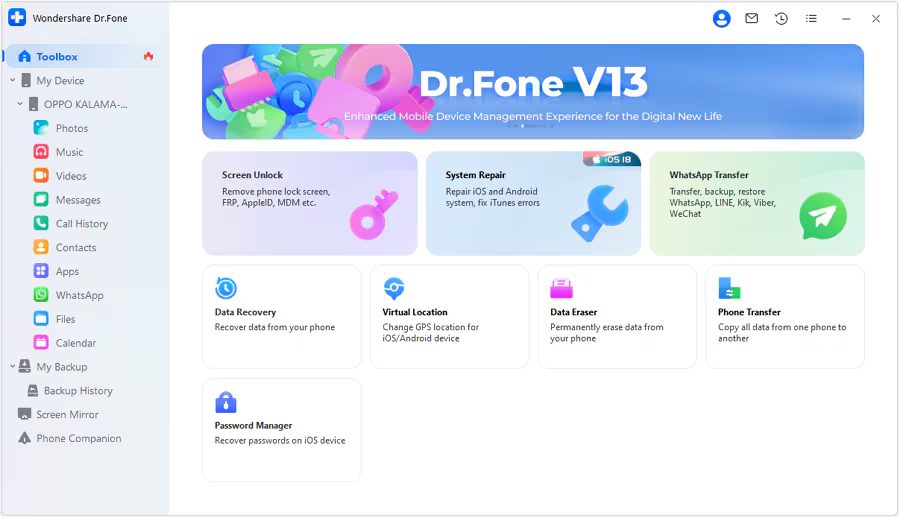
Step 1: Launch the iOS System Repair Tool after installing the tool on your computer. Go to the Toolbox section from the top left side of the screen. Now, select System Repair from the list displayed on the home screen.
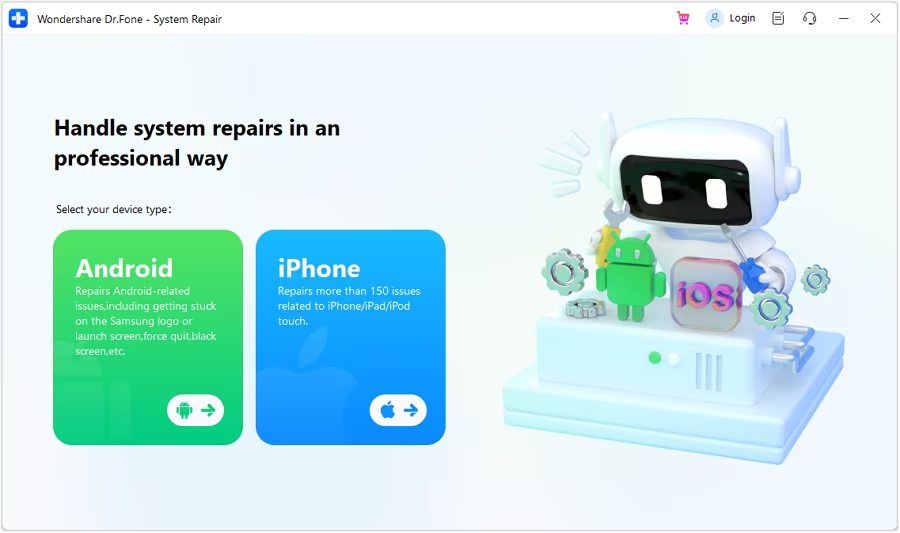
Step 2: You will be redirected to a new window as you connect your iOS device to your computer with a cable connection to select the nature of the device. So, select iPhone since we are performing iOS System Repair.
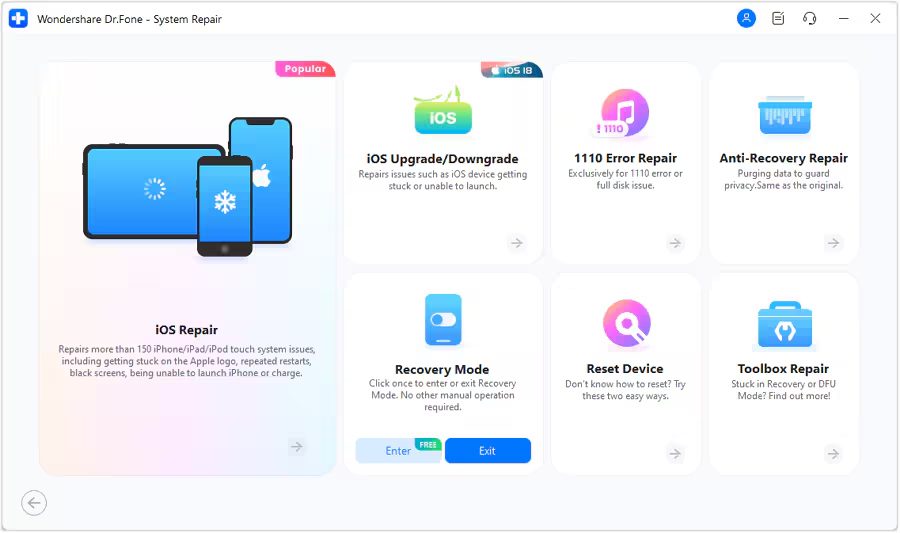
Step 3: Select iOS Repair among the set of options appeared on the screen to continue system repair.
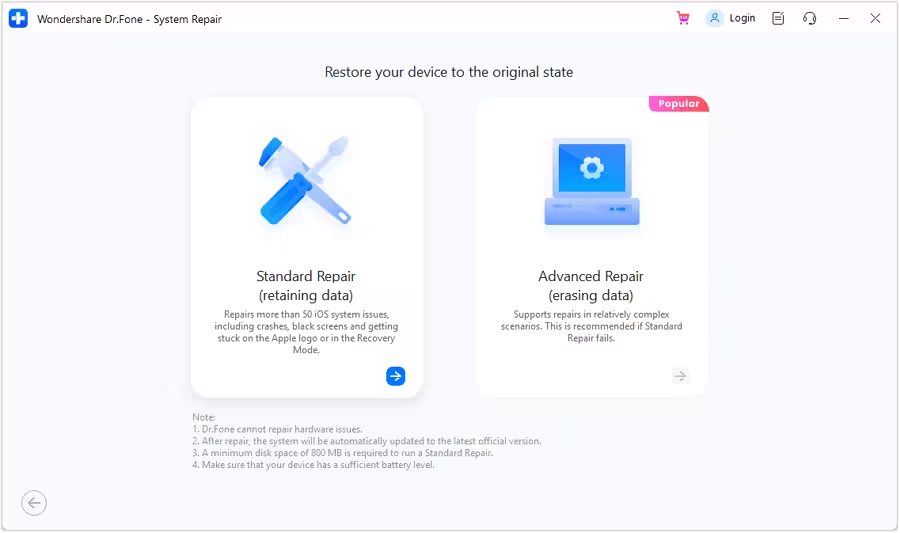
Step 4: Select Standard Repair as a mode of repairing for your iOS device.
Step 5: Next, you have to enter your iOS device into Recovery Mode by following the on-screen instructions. After that, click on Enter Recovery Mode. But if not entered your iOS device into Recovery Mode, click on Guide and follow the ongoing instructions to enter your iOS device into Recovery Mode.
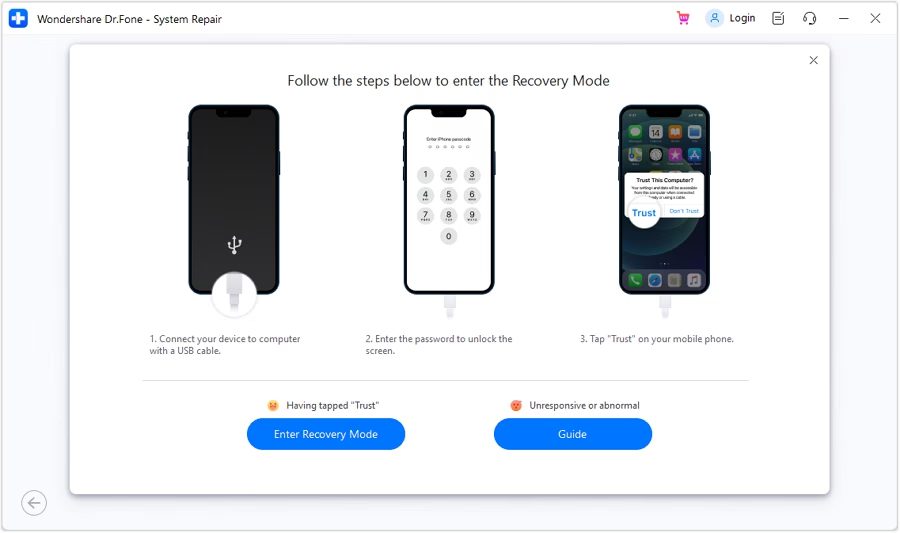
Step 6: After entering your iOS device into Recovery Mode, the platform will automatically detect the iOS firmware to be installed in the device. Click Download next to the iOS firmware you wish to install.
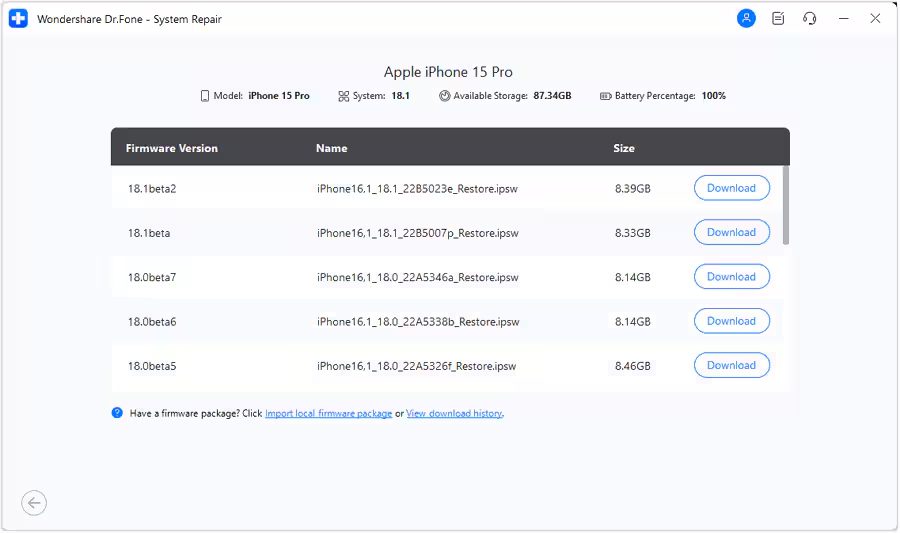
Step 7: The iOS firmware will automatically start downloading on the platform.
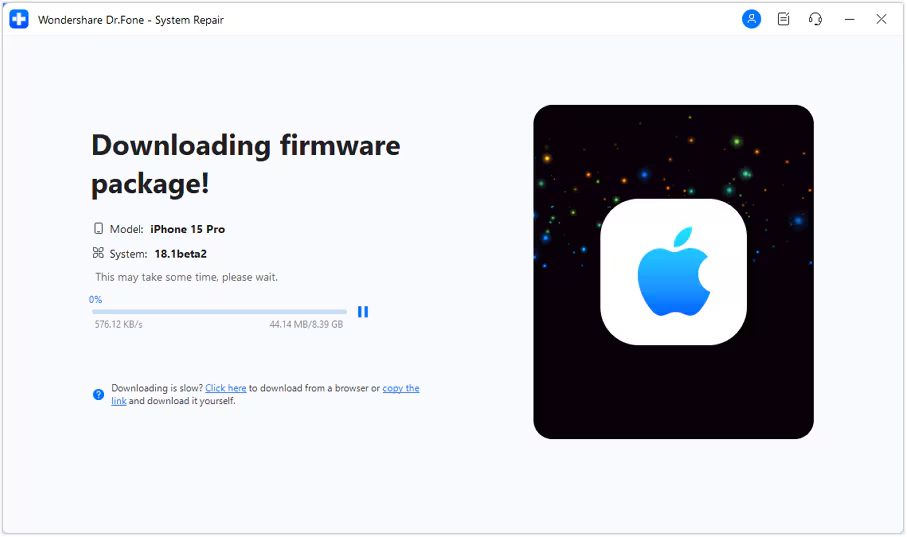
Step 8: Next, click on Repair Now to continue the repairing process.
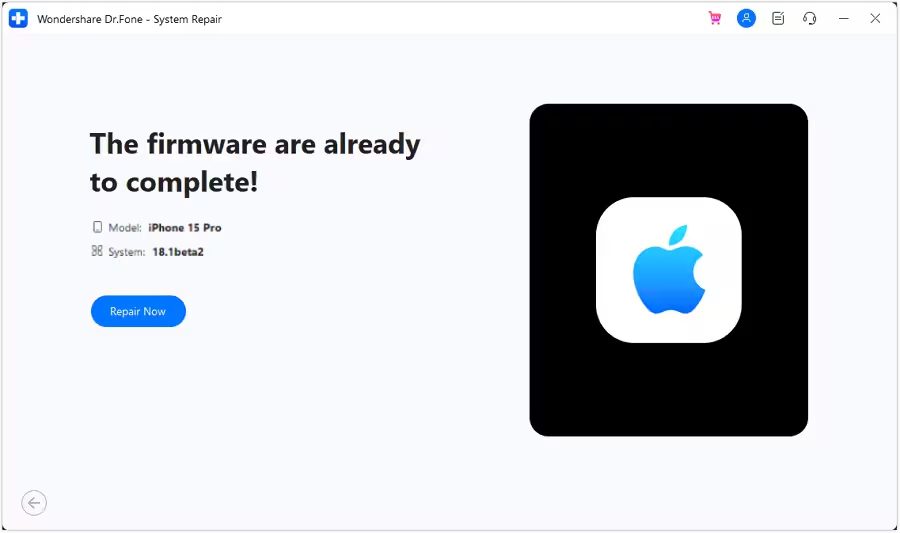
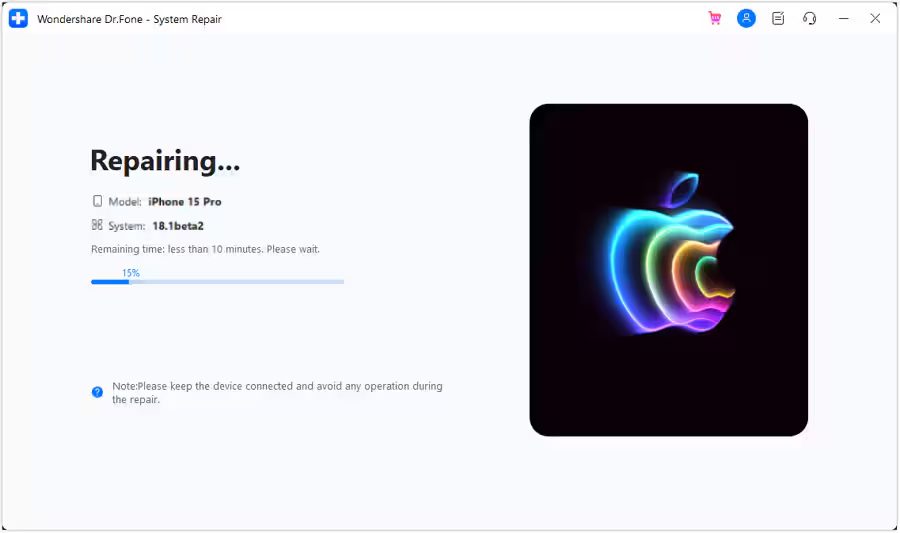
Step 9: Now, wait for the process to complete and make sure your iOS device is connected to the computer.
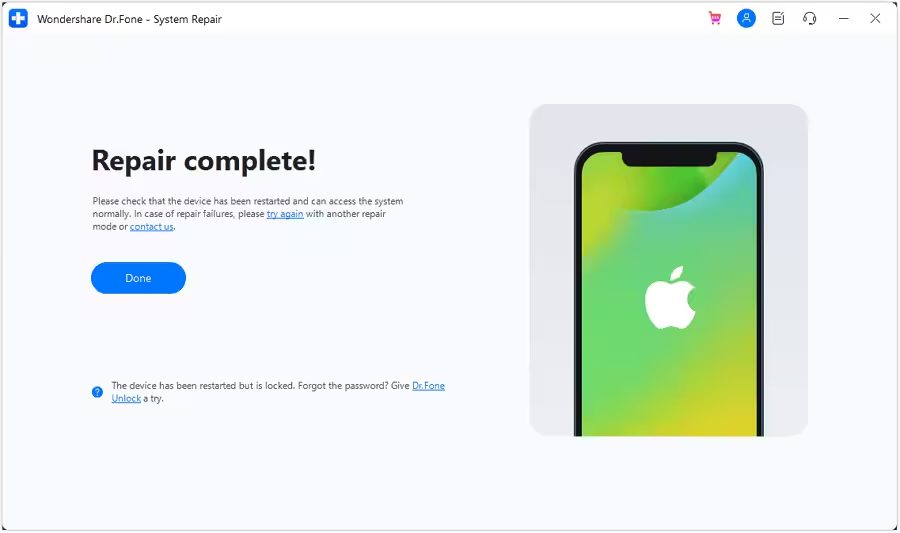
Step 10: The screen will now show the completion of the process. Select Done to complete the whole repairing process.
|
|
Note: All the methods that I have discussed above will work on all iPhone models which support iOS 18 like iPhone 16, iPhone 15, iPhone 14, iPhone SE, iPhone 13, iPhone 12, iPhone 8, iPhone 7, etc.
Wrap Up
You can fix iPhone keyboard lagging after iOS 18 update with the help of the 9 methods discussed above. All the methods are simple and work effectively.
However, iOS Repair tool is the best tool to resolve the issue as it don’t lose data and solve the problem in few minutes.
You May Also Like:
- How To Fix WiFi Issue On iPhone After iOS 18 Update
- How To Fix iPhone Boot Loop Issue After iOS 18 Update
- How To Fix iPhone Emails Not Working After iOS 18 Update
- How To Fix iOS 18 Black Screen After Update

Max Field is a founder of Recover Android Data. He is an Android lover and loves to write tips, tricks, fixes for errors, data recovery solutions and more related to Android. Provide Gaming Tips, Tricks, Game Error/Issues Solutions (PC/Xbox/PlayStation/Mobile). He is now also interested in solving LinkedIn Puzzles. He has 12+ years of experience in this field.