

Learn 9 Effective Solutions To Troubleshoot Common Android 8.0 or 8.1 Oreo Bluetooth Problems and Issues!
Overview: After a quick Google search, I have found that there are many Android Oreo (8.0 or 8.1) phone users who are encountering several Bluetooth issues. Hence, in this tutorial I have provided the fixes for common Android Oreo 8.0 or 8.1 Bluetooth issues.
- Solution 1: Update Your Android Oreo Device If Any Update Available
- Solution 2: Reboot Your Android Oreo Device
- Solution 3: Reset Bluetooth Device
- Solution 4: Restart Bluetooth Connection
- Solution 5: Forget And Reconnect The Bluetooth Connection
- Solution 6: Reset Network Settings
- Solution 7: Clear Bluetooth App Cache And Data
- Solution 8: Disable Battery Optimization For Bluetooth
- Solution 9: Reboot Your Device Into Safe Mode
Since, Android Oreo brings lots of features and improvements, but it doesn’t mean that it is completely free from bugs. Many users have reported about Bluetooth connection problem on their Android Oreo devices.
Also Read: Solved: ‘Unfortunately, Bluetooth Has Stopped’ Error
For example, just check out the real practical scenarios of users!
Practical Scenario 1: A User Android 8.1 Oreo Phone Not Getting Connected To Car Infotainmnet System
My Pixel 1 fails to pair with my car infotainment system (CONNECTNEXT) ever since the update to Oreo 8.1.0. My phone calls to the India support number, and repeated upload of system logs is not evoking any acknowledgement of this issue from Google. Why do i get a feeling that I no longer have any control of my own phone, and simply am a means for Google to experiment and break my phone functionalities at their discretion?
Any suggestions on how to make Google take a look into this bluetooth issue on my phone?
Source: Pixel User Community
Practical Scenario 2: User OnePlus 5T Running On Android Oreo (8.1) Get Disconnected Over The Bluetooth Over Car
After 5.1.0 (Oreo 8.1) upgrade on my 5T, I noticed the bluetooth behavior has changed. Now when I place a call, it transfers the call to my phone instead over bluetooth in the car. I have to wait for the call to connect to transfer it back to the car which then works fine. It is only on the initial connection that it seems to switch from bluetooth to the phone. Music works fine. I have tried unpairing and repairing, same behaviour. My car is a 2013 Hyundai Sonata GLS. As mentioned, it has been working fine on 8.0 and previous builds.
Source: OnePlus Forum
Similarly, just like above examples, there are many Oreo users who are facing several Bluetooth issues.
While for some users Bluetooth does not get connected or keeps disconnecting frequently or connectivity dropping while listening music, other users are encountering issues like unable to pair Bluetooth with another Bluetooth device or card or facing problem while receiving or dialing calls over Bluetooth on Android Oreo phones.
Also Read: How To Fix Huawei P20/P20 Pro/P30/P30 Pro Bluetooth Issues
So, now the question arises – How to fix Bluetooth issues on Android Oreo (8.0 or 8.1)?
Well, continue reading the article to find out the solutions!
Note: Below mentioned solutions is applicable to all Android phones and tablets including Google Pixel Phones, Nexus, Samsung, OnePlus, Xiaomi, LG, Huawei, ZTE, Meizu, HTC, Sony, Moto, Lenovo, Oppo, etc running on Android Oreo 8.0 or 8.1.
Solution 1: Update Your Android Oreo Device If Any Update Available
First of all check software update for your device and if any update is available then simply update it. Many problems get solved by simply updating the software update of the device and may be your Android 8/8.1 Bluetooth issue can easily get fixed by updating your Android device.
In order to update your device go to Settings> About Phone> System Update> Check for Updates. If any update is available then simply download and update it.

Now, check if your problem is solved or not. If not, then try next solution.
Solution 2: Reboot Your Android Oreo Device
If your Android phone does not get connected to your Bluetooth device, for example: car, speakers, headphone or anything else, then in such situation it is suggested that you must restart both of your devices.
Though there could be various factors why your device unable to connect to your Bluetooth device, however a usual reboot-trick can do the job.
Solution 3: Reset Bluetooth Device
In some cases, there are issues with your Bluetooth device such as speakers, headphone or other gadgets. One way to solve this issue is to reset your Bluetooth device completely and then pair them again with your phone.
This might fix the Android O Bluetooth issues. If not then go to next solution.
Solution 4: Restart Bluetooth Connection
In some scenario, it happens that you are successfully connected to Bluetooth device but still encounter connection problems such as poor connectivity or voice problem. In such scenario, you can toggle Bluetooth Off and On in order to fix the problem.
For that, go to Settings> Bluetooth and then toggle it OFF and ON.

You can try this solution for few times and see if Android 8.0/8.1 Bluetooth fixed or not, if not then follow next solution.
Solution 5: Forget And Reconnect The Bluetooth Connection
Another solution that can help you to fix this issue is to forget the paired devices and reconnect them again. This can fix the problem.
Follow the below steps on how to do this:
- On your phone go to Settings> Bluetooth> Connected Devices> Tap on name of Bluetooth connection> Tap Forget.
- Now try to reconnect by pairing the device again.
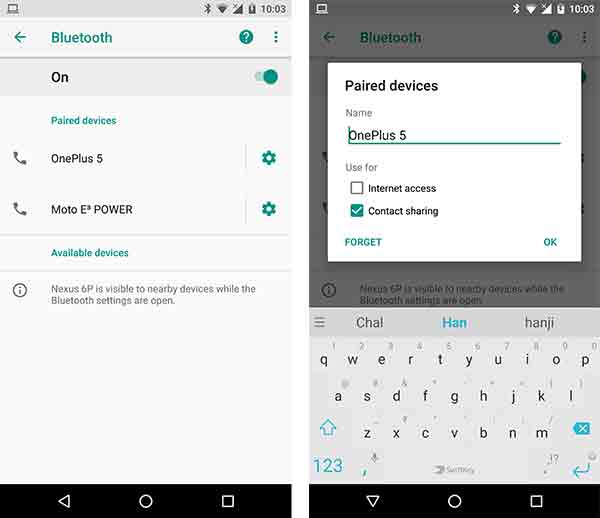
Now check the connection, I hope your Bluetooth connection on Android Oreo (8.1/8.0) might have been fixed.
Also Read: [Fixed]: “System UI isn’t responding. Do you want to close it?” Error
Solution 6: Reset Network Settings
This is another effective solution that can help you to fix Bluetooth connection error on Android Oreo phone. Reset network settings will reset all the wireless settings such as Wi-Fi network, Bluetooth connection, paired devices mobile data, etc.
Here follow the steps to reset network settings:
- On your phone, open Settings.
- Tap on System.
- Tap on Reset.
- Tap on Network settings reset.
- Finally, tap on “Reset Settings”.

Though it will reset all network settings on your device, but at the same it will also fix the Bluetooth connectivity on your Android Oreo device.
Solution 7: Clear Bluetooth App Cache And Data
You can clear Bluetooth App cache and data in order to fix Bluetooth issue on Android Oreo. Let me tell you that clearing Bluetooth cache and can solve many problems and issues related to Bluetooth.
Here follow the steps to clear Bluetooth app cache and data:
- On your iPhone, go to Settings> Applications.
- From the top right corner tap on 3 dot (Menu).
- Select “Show system apps”.
- Scroll down and tap on “Bluetooth share”.
- Tap on Storage and then tap on “Clear cache” and “Clear data”.

You May Also Like:
- [Fixed]: This device was reset. To continue, sign in with a Google Account that was synced on this device.
- Fixes For “Sorry, This Media File Doesn’t Exist On Your SD Card/Internal Storage
- [Solved]: ‘Insufficient Storage’ Error on Android
- Fixed: ‘No Command’ Error In Recovery Mode on Android
Solution 8: Disable Battery Optimization For Bluetooth
In some cases, battery optimization also results in Bluetooth issue. So, in such cases, you have disable battery optimization for Bluetooth and this may fix the issue for you.
Here follow the steps to disable battery optimization for Bluetooth:
- On your phone, open Settings> Apps & Notification> Special app access.
- Tap on “Battery optimization”.
- Tap the drop down Menu and choose “All Apps”.
- Tap on Bluetooth and select the option “Don’t optimize”.

Solution 9: Reboot Your Device Into Safe Mode
Safe Mode is another way to recognize Bluetooth issues. When your device is in Safe Mode you can easily recognize which third-party app is causing problem and hence you can un-install them one-by-one from your device and check if your problem is solved or not.
Here follow the steps to reboot Android Oreo device in safe mode:
- Press and hold “Power” button on your device.
- You will see the option for “Power off”. Touch and hold the Power off option.
- You will get a pop-up option “Reboot to safe mode”. Tap “OK”.
- Now your device will restart in “Safe Mode”. You can see the safe mode symbol at the bottom of the screen on the left side.

Once you are in Safe Mode, find app that causing issue to the Bluetooth connectivity and remove them one-by-one (if more than one app is causing issue) from your device. When you are done, you can exit safe mode on Android Oreo pressing “Power” button and tap restart.
If none of the above solutions work, then you can simply factory reset your Android device and set-up everything from the beginning, this will definitely going to solve your Bluetooth issue.
However, restoring phone to factory reset will erase all data from your device. Hence it is suggested that you must first back up your Android device data by using Android Data Backup and Restore software.
Wrap Up
So, guys those were some of the effective solutions that you can follow one-by-one and check if your Bluetooth issues have been fixed or not on your Android Oreo (8.0/8.1) phone or tablet.
I hope this tutorial will help you in solving the Bluetooth issues on your Android Oreo devices.
If you have found this post helpful, then please share it, so that it can help others.
Please support us by subscribing to our YouTube Channel.

Max Field is a founder of Recover Android Data. He is an Android lover and loves to write tips, tricks, fixes for errors, data recovery solutions and more related to Android. Provide Gaming Tips, Tricks, Game Error/Issues Solutions (PC/Xbox/PlayStation/Mobile). He is now also interested in solving LinkedIn Puzzles. He has 12+ years of experience in this field.