

In This Article, You Will Learn How To Fix Palworld Can’t Connect To Dedicated Server or How To Fix Dedicated Server Not Working In Palworld.
How To Fix Palworld Can’t Connect To Dedicated Server
Fix 1: Forward Ports To 8211
- Launch Palworld from Steam.
- After Startup, click on Join Multiplayer game.
- Enter your ip and add the :8211 and click on connect.
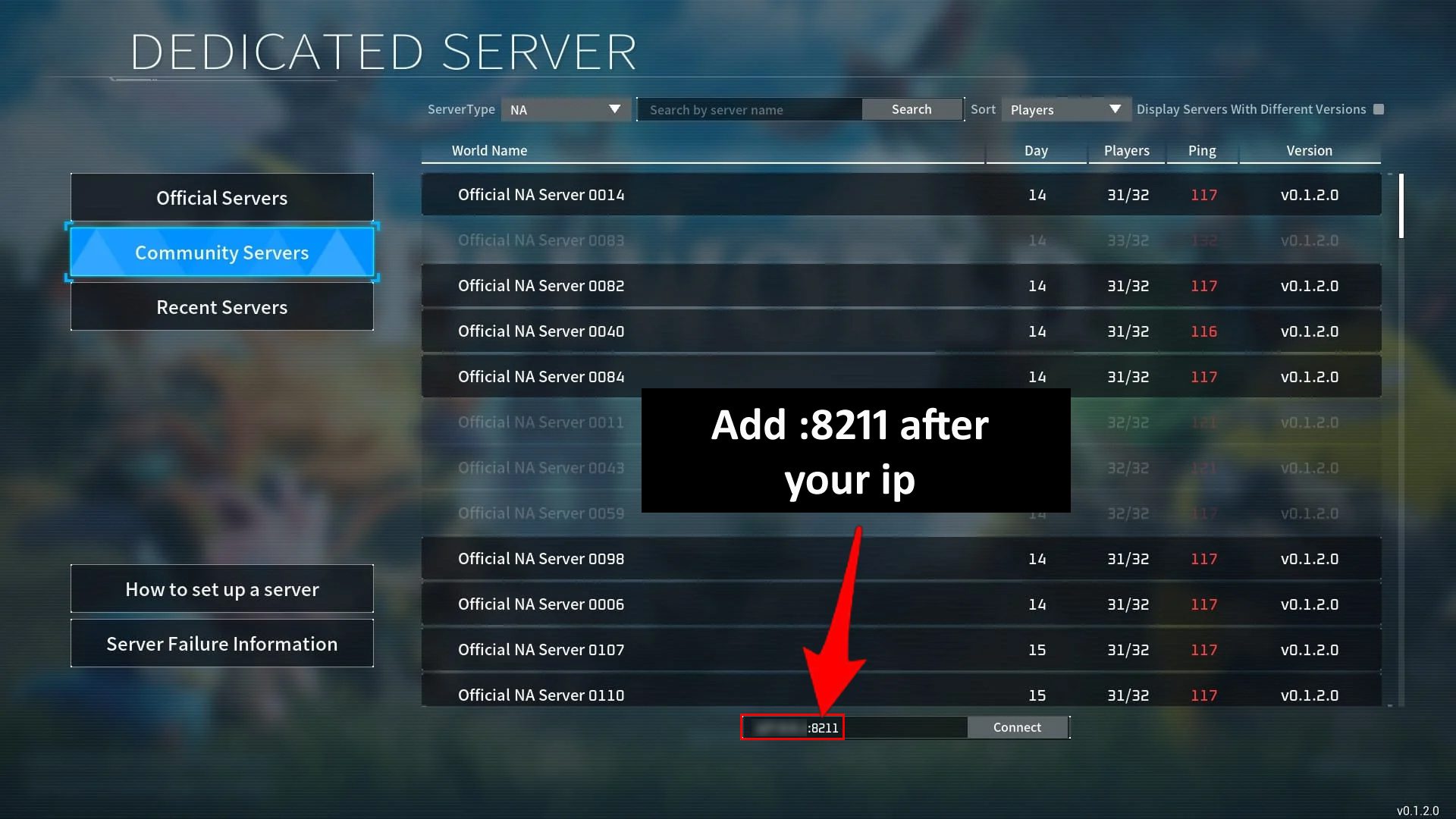
That’s it.
Fix 2. Restart Your Palworld
Close the game completely. Close it from Task Manager. Close the game launcher from “Show hidden icon”.
Restart your PC and then launch the Palworld. If it is taking time, then please wait it may take time upto 10-15 minutes.
Fix 3. Check Internet Connection
Make sure your internet connection is stable and working properly.
You can do speed test to check. Or you can restart your router or modem, it will help in improving the connectivity issues.
Fix 4. Run Palworld As An Administrator
- First close steam. Right-click on Steam icon and select “Run as administrator”. Go to Library.
- Right-click on Palworld and select “Manage” and then click on “Browse local files”.
- Now, right-click on Palworld executable file and select “Properties”.
- Go to Compatibility tab and check mark “Run this program as an administrator”.
- Click on “Apply” and “OK”.
- Now, launch the Palworld game and check if your problem is solved or not.
Fix 5. Try VPN
If you are playing Palworld on PC, then try to connect a VPN to change your location/region.
This might help, if the server is throttled or if there are problems with specific locations or regions.
Fix 6. Allow Palworld To Firewall/Antivirus
You can either turn of Firewall and other third-party antivirus program for a while and then check.
Or else, allow Palworld to firewall and antivirus.
Here how to allow Palworld in your Firewall:
- Click on Windows icon and then click on Settings.
- On the left, click on “Privacy & security” and then click on “Windows Security”.
- Click on “Firewall & network protection”.
- Click on “Allow an app through firewall”.
- Click on “Change settings” and then click on “Allow another app”.
- Click on “Browse” and navigate to C Drive > Program Files > Steam > steamapps > common > Palworld > select Palword app > Add
- Again, click on “Allow another app > Browse and navigate to C Drive > Program Files > Steam > steamapps > common > Palworld > Pal > Binaries > Win64 > select Palword-Win64-Shipping > Add it.
- Now, check if the problem is fixed or not.
Fix 7. Check Your Firewall Settings
If you are unable to connect to the dedicated server after the game is running, then check Firewall settings on the machine and open the right ports for proper connectivity.
Fix 8. Verify Port Forwarding Settings
Go to your router’s settings by typing the router’s IP address into a web browser.
Go to the port forwarding section (this could be labeled differently depending on your router).
Add the following ports required for Palworld:
- TCP: 7777, 27015-27030
- UDP: 7777, 27015-27030
Save the changes and restart your router.
After port forwarding is configured correctly, restart your Palworld dedicated server and check if the problem is solved.
Fix 9. Wait For Server Fix
If nothing seems to work, then wait for Palworld developer to fix the server issue.
Since, the Palworld game is recently released and therefore a huge number of users trying to play the game and hence players are facing server issues.
So, wait Palworld will fix the issue soon.
If you have found this post helpful, then please share it as it can help other users!
Please support us by subscribing to our YouTube Channel.
You May Also Like:
- How To Fix Palworld Not Loading/Stuck On Loading Screen on PC
- How To Fix Black Screen on Launch In Palworld
- How To Fix Palworld Controller Not Working
- How To Fix “OncreateSessionCompleteDelegate bWasSuccessful == false” In Palworld

Max Field is a founder of Recover Android Data. He is an Android lover and loves to write tips, tricks, fixes for errors, data recovery solutions and more related to Android. Provide Gaming Tips, Tricks, Game Error/Issues Solutions (PC/Xbox/PlayStation/Mobile). He is now also interested in solving LinkedIn Puzzles. He has 12+ years of experience in this field.