
Have you accidentally deleted files like photos, videos, messages, call logs, documents, etc. from your Poco F6, F5, or F4? If Yes, then this tutorial will teach you some most reliable methods to recover deleted data from Poco F6/F5/F4. Whether you have backup or not.
Before moving to the solutions part, it is important to know the reasons behind the deletion. That’s why we will first discuss the causes.
Reasons For The Deletion Of Data From Poco F6, F5, Or F4
There are some common causes due to which your files can be deleted from your smartphone.
They are as mentioned below:
Accidental Deletion: If you have mistakenly selected the wrong file and they got deleted from your device.
Water Damage: You are taking pictures or making videos at a pool or beach area and your phone is dropped into the water.
Virus Or Malware Infection: If a virus or malware enters on your phone and all the available data gets damaged.
Other Reason: Some other reasons for deletion of files from your smartphone are factory reset, forgotten screen lock password, ROM flashing, screen damage, etc.
We hope your Poco device data has been lost due to any of these reasons. Whatever may be the reason, you can retrieve the lost or deleted data by following the solutions discussed below.
How To Retrieve Deleted Data From Poco F6/F5/F4
Here you will find 5 possible fixes on how to recover deleted files from Poco F6, F4, or F5.
Let’s check them out!
Method 1: Restore Deleted Poco F6/F5/F4 Data From Google Drive Backup
As you know Google Drive provides you with 15 GB of free storage space to backup files like photos, videos, and documents. If you want more storage space then you can buy it also.
So, if you have kept your Poco phone data in Google Drive before they got deleted from your device then you can easily restore them.
Here are the steps to get back lost data from Poco F6, F5, or F4 using Google Drive backup:
- Open the Google Drive app or you can open Google Drive webpage.
- Now, login to your account (if not logged in) using the same ID and password.
- After this, you will be able to view all backed-up files on the screen.
- Choose the data and tap on the 3 dots.
- Next, tap on the Download option.
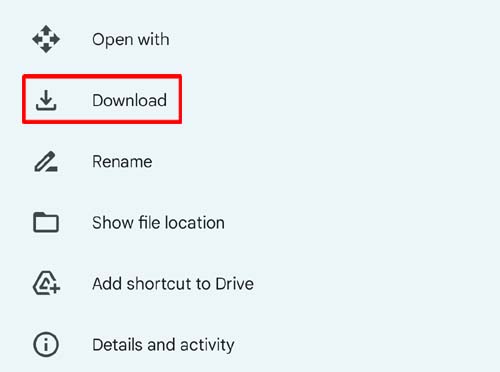
Wait for few minutes and all the selected data will be downloaded.
Method 2: Retrieve Lost/Missing Poco F6/F5/F4 Data From Recycle Bin
Nowadays every Android phone provides the Recycle Bin feature on their phone which you can use to get back lost images and videos from your phone’s Gallery.
So, you can open the Gallery app on your Poco F4/F5/F6 phone and go to the Recently Deleted or Recycle Bin folder. Now, select the data that you wish to restore and tap on the Restore button to get back lost pictures and videos.
Method 3: Use Google Photos To Get Back Poco F6/F5/F4 Data
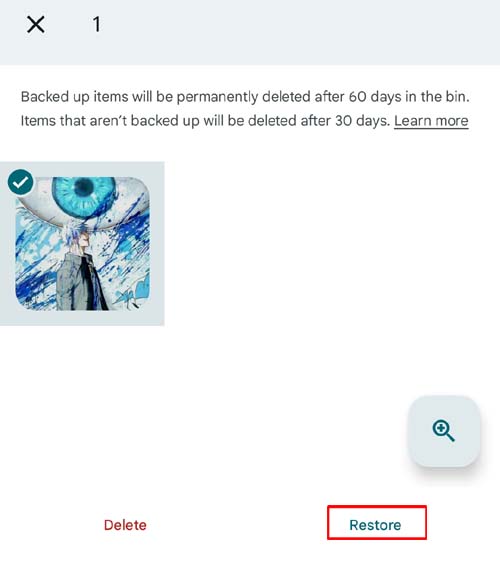
If you have synced your phone to Google Photos then you can undelete the videos and photos using the app’s trash.
Here, follow the steps to retrieve the lost photos and videos from Google Photos Trash:
- Open the Google Photos app on your phone.
- Login to it if you are not logged in.
- After this, go to Library > Trash.
- Now, choose desired pictures and videos and tap on Restore option.
Method 4: Use Android Data Recovery Software To Recover Deleted Data From Poco F6/F5/F4
If you want to know how to recover permanently deleted data from Poco F6, F5, or F4 then you can use professional Android Data Recovery software which is a suitable Poco F6/F5/F4 Data Recovery tool to get back lost files.
 |
 |
It is the most popular and reliable data recovery tool which allows you to retrieve different types of files like text messages, videos, images, call logs, contacts, etc.
Poco Data Recovery tool also allows you to undelete disappeared/lost items in various scenarios like accidental deletion, factory reset, water damage, virus infection, ROM flashing, and others.
Note: Please don’t add any new data on your phone after the data deletion because this will overwrite the existing data which will create problems in successful data recovery.
Steps To Recover Deleted Data From Poco F6/F5/F4 Using Android Data Recovery Software
Step 1 – Download, install and launch Android Data Recovery software on your computer and then go to Toolbox and select “Data Recovery” option.

Step 2 – In a new window, you will be asked to select your Phone System. Simply click on “Android” to recover data from your phone.

Step 3 – In the next window, continue to select “Recover Android Data” from the available options.

Step 4 – You will then be asked to connect your Android phone to computer to recover data from it. Connect your device with the help USB cable and allow the software to detect it.

Step 5 – In the next window, select all the file types that you want to recover from Android. Click on “Start Scan” located at the bottom right of the screen to continue.

Step 6 – The tool starts to recover data from Android device and displays it on the preview screen. Just wait until the entire device is scanned.

Step 7 – Once the device appears on the screen, you can select and view the data. You can also click on the filter options located at the top. Here, you can select any suitable option to change the viewing parameters.

Step 8 – Finally, select the data that you want to recover and click on “Recover” button. Continue to set the desired location to save the recovered data and click on “Recover” to begin the process to save files.

|
|
Wrap Up
We have covered the 4 most easy and effective methods to recover deleted data from Poco F6/F5/F4 in both cases, when you have a backup of deleted data or when you don’t have any backup.
If you have a backup then you can restore the lost/missing files from Google Drive, Google Photos, recycle bin, and when you don’t have any backup or the file is not available in the backup folder then you can use Poco F6/F5/F4 Data Recovery tool.
Besides the solutions, you have also to get familiar with the reasons. So, if you like this guide then don’t forget to share it.
You May Also Like:
- How To Recover Deleted Videos From Android Phone Internal Memory
- [Android] Recover Deleted WhatsApp Messages Without Backup
- Retrieve Deleted Text Messages On Android Without Computer
- How To Restore Calendar Events On Android

Max Field is a founder of Recover Android Data. He is an Android lover and loves to write tips, tricks, fixes for errors, data recovery solutions and more related to Android. Provide Gaming Tips, Tricks, Game Error/Issues Solutions (PC/Xbox/PlayStation/Mobile). He is now also interested in solving LinkedIn Puzzles. He has 12+ years of experience in this field.