
Is voicemail not working on your Samsung Galaxy S24 series phone?
Voicemail is a very convenient feature offered by all Samsung smartphones including Samsung S24, S24 Plus, and S24 Ultra.
With the use of this feature, if the call receiver is not receiving the call, one can leave a voice message that will be sent to the receiver.
Hence, this is a very useful feature, but what if it stops working? In that case, you must be searching for solutions to solve this problem.
Then you should read this troubleshooting guide to learn how to fix voicemail not working on Samsung S24/S24 Plus/S24 Ultra.
Besides this, we will also explore some reasons why voicemail not working on your Galaxy S24 series phone.
So, let us first know the causes of why won’t your visual voicemail work on your Samsung S24, S24 Plus, or S24 Ultra.
Causes: Why is Voicemail Not Working on Samsung S24 (Plus) (Ultra)?
There could be multiple reasons why your voicemail is not working on your phone.
Here we have mentioned some of the reasons:
- Network Issue: If you are out of the network coverage area, then you may encounter this problem. This could be your carrier network area. Also, if phone network settings are not configured correctly.
- Bugs In-App Itself: Since you need an app to access your voicemail, it is possible that the cache files of the app itself got corrupted and contain bugs.
- Update Issues: Whether it is a system update or an app update, then you may experience that your visual voicemail is not functioning properly.
- Low Free Memory Space: If your device has low free memory, then it might be possible that your call is not finding a way to store the messages.
- Mobile Data Not Enabled: This is another common cause. Your app will not work if mobile data is not turned on.
- Background Data Usage Is Not Allowed: If the visual voicemail app does not have the required permissions set to work in the background.
These are some of the common factors and causes responsible for improper functioning of voicemail on Samsung S24 Ultra/S24 Plus/S24.
So, let us discuss its fixes without wasting time.
Fix Voicemail Not Working on Samsung S24/S24 Plus/S24 Ultra
Fix 1: Restart Your Samsung S24 Devices
Restarting your device could eventually solve any minor inconvenience and sometimes major issues too.
To do so, press and hold the Power button until some options are prompted, then tap on Restart and wait for the process to complete.
Fix 2: Update Your Device Software
Updating your device’s software could be another alternative solution to solve minor issues related to any glitch or error.
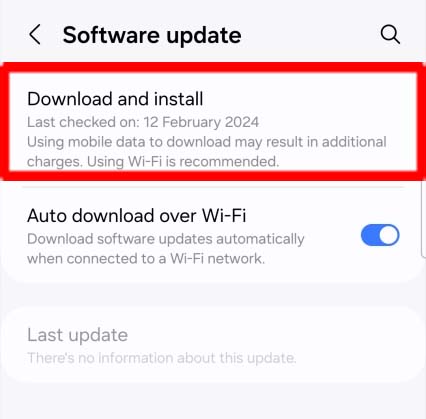
To update your phone, go to Settings > Software Update > Download and install (If available).
Fix 3: Check The Internet Connection
Before you try to send a voicemail, make sure your device is connected to a stable and strong internet connection.
If your Internet connection is not strong enough then you may not be able to use the Voicemail feature.
So, make sure to have a good internet connection that can allow you to use this feature smoothly.
Fix 4: Free Up Storage
Full storage can interrupt the functioning of voicemail. So, if you are running out of space on your Samsung phone, you may not be able to use the voicemail feature properly.
In this case, you should delete some of the stuff that is not in use to make your device’s storage more spacious.
Fix 5: Verify Your Voicemail Number
If you have entered the wrong voicemail number, then it could be responsible for the voicemail not working problem.
To verify the voicemail number, follow these steps:
Step 1: Go to the Phone app on your Samsung device.
Step 2: Tap on three dots > Settings > Voicemail > Voicemail number.
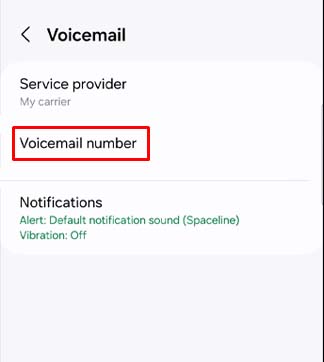
Step 3: Now, verify the number that you have entered.
After verifying the number, try to send a voicemail and see if it is working or not.
Fix 6: Turn OFF and ON Visual Voicemail
Another method you could use is that you have to turn OFF visual voicemail for some time and then turn it ON again.
To do so, here are the steps to follow:
Step 1: Go to Phone app > three dots from the upper right corner.
Step 2: Tap on the Settings > Voicemail.
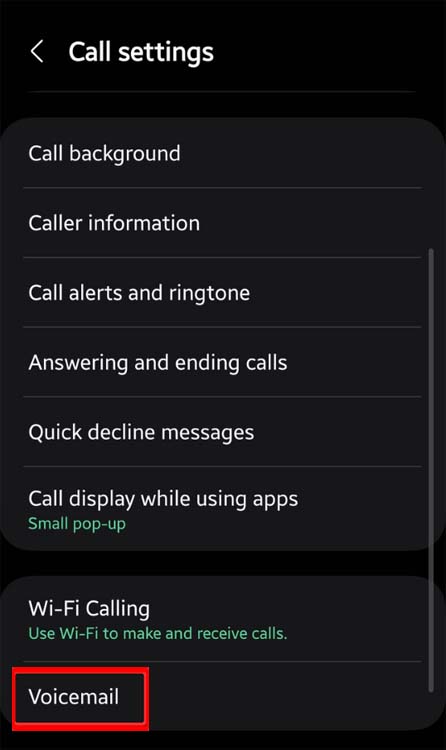
Step 3: Then turn off and on the Visual Voicemail.
Now, check if you are still unable to use the voicemail feature or not.
Fix 7: Turn OFF Call Forwarding
If you have enabled call forwarding then it can interfere with the voicemail feature.
If that’s the case, then you should turn off the call-forwarding feature.
Here’s how to do it:
Step 1: Go to the Phone app on your phone.
Step 2: Tap on three dots > Settings > Supplementary services.
Step 3: Now, tap on Call Forwarding and disable it.
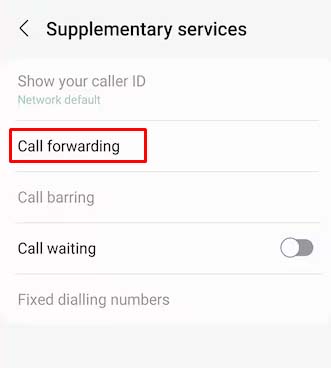
Now, there will be no interference in the voicemail and you will be able to use this feature without any hustle.
Fix 8: Reset Network Settings
It may be possible that the issue is with the Network Settings and you are unaware of that.
So, in this case, the best thing to do would be to reset the Network settings.
Here, is how to do it:
Step 1: Go to Settings on your Samsung Galaxy phone.
Step 2: Tap on General Management > Reset > Reset Network Settings > Reset Settings.
Step 3: Then, tap on Reset to confirm.

Now, restart your device try to send a voicemail, and see if it is working or not.
Fix 9: Factory Reset Your Samsung S24 Series
If none of the fixes didn’t work for your phone, there must be some software issues.
In this situation, you should do a Factory Reset on your Samsung device.
Note: Keep a prior backup before opting for this method, as a Factory Reset can delete all the data from your phone.
After the backup, you may follow the steps below to do a Factory Reset.
Step 1: Open Settings > General Management.
Step 2: Navigate to Reset > Factory data rest > Reset.
Step 3: Tap on Delete all.

After the whole process, set up your phone, try to send the voicemail, and see if you can use it or not.
Fix 10: Contact Samsung Support
By any chance, if any of the above-mentioned fixes didn’t help you to fix the voicemail not working problem on the Samsung S24 series including the Factory Reset, then there could be some hardware issues.
In such a situation, you should contact Samsung Support or take your phone to any professional to fix this issue.
Wrap Up
Voicemail is a very good way to send your message to anyone in a sound form.
With this feature, you can leave your message and let the receiver know about the message that you sent even if the call receiver was unable to receive the call.
But many users have been facing issues regarding this and have been complaining about voicemail not working lately.
However, in this article, you can learn how to Fix Voicemail Not Working on Samsung S24/S24 Plus/S24 Ultra.
I hope you have read the whole guide carefully and were able to fix this issue.
You May Also Like:
- How To Fix Speakers Not Working on Samsung S24 Ultra/S24+/S24
- Fix Samsung S24 Ultra/S24 Plus/S24 Notification Sound Not Working
- How To Fix Mic Not Working On Samsung S24, S24+, S24 Ultra
- Fix Overexposed Photos on Samsung S24/S24 Plus/S24 Ultra

Max Field is a founder of Recover Android Data. He is an Android lover and loves to write tips, tricks, fixes for errors, data recovery solutions and more related to Android.