
Did your data get deleted from Samsung Z Fold 6 or Z Flip 6?
The new Samsung Z Fold 6 and Z Flip 6 have recently been introduced to all of us.
It comes with the latest Galaxy AI that will help you with AI-related tasks. For example, you can circle the thing you want to know about and the AI will tell you the details.
Isn’t it exciting?
However, we are not discussing the Galaxy AI here, we are talking about how can you recover the deleted data on the new Samsung Z Flip6 or Z Fold6.
In this guide, you will learn how to recover deleted or lost data from Samsung Galaxy Z Fold6 or Z Flip6.
There are several reasons behind the deletion of data such as accidental deletion, factory reset, ROM flashing, or broken/damaged phones.
If you are familiar with any of the following scenarios, then it may have erased the important data of your phone.
Now, let’s check out the methods to recover it.
How To Recover Deleted Or Lost Data From Samsung Galaxy Z Fold6/Z Flip6
Method 1: Restore Data From Gallery & My Files App
If your data has recently been deleted, then you can restore it easily from the recycle bin.
However, the deleted data will only be stored for 30 days. So, within 3o days you need to restore it or it will be deleted permanently.
This is how you can restore them.
Using Gallery App: Open Gallery and tap on the Menu icon (3 Horizontal Lines) > Recycle Bin.
Select the photos or videos that you wish to restore and tap on Restore all.
Using My Files: Open the My Files app and navigate to Recycle Bin.
Select the images and videos that you want to recover and tap on “Restore all”.
Method 2: Retrieve Using Google Drive Backup
If you have backed up your data on the Google Drive backup, then you can restore it from its app or the webpage.
Google Drive lets you back up the data up to 15GB for free. However, you can extend the storage by purchasing the plan. This is how the steps are.
- Open the Google Drive app or visit the web page, and log in to your account, if not logged in.
- All your backups will be displayed on the screen, select the files you want to recover.
- Next, tap on the Three Dots icon and select the “Download” option.
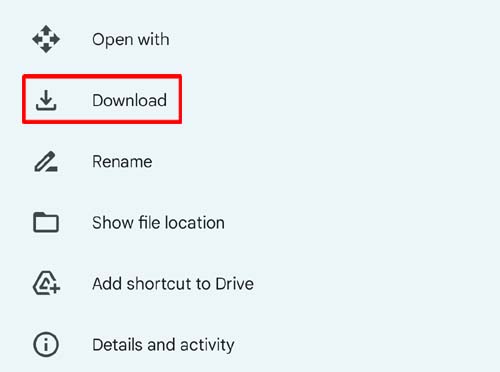
Make sure you have a fast internet connection and wait for the process to complete.
Method 3: Get Back Lost Data Via Samsung Cloud Backup
Samsung phone has a built-in backup feature called Samsung Cloud. Here you can back up your device data and restore it anytime.
So, if you ever backup the data on Samsung Cloud, then follow the below steps to restore it.
- Open Settings and navigate to Accounts and Backup > Restore data.
- Select the backup file and choose the file type that you wish to recover.
- At last, tap on the Restore.

This will take a couple of minutes depending on your file size.
Method 4: Use Smart Switch Backup
You can also back up your data to Smart Switch. So, if you have backup your data before the deletion happens, then use your PC to recover it.
You need to connect your Galaxy phone to your PC and follow the below steps.
- Once you have connected your phone to the PC, open the Smart Switch application on your PC.
- Click on the Restore option, and it will start finding your backed-up data, if not, then you need to select “Manually select file”.
- Choose the backup file and lastly click on Restore.
Wait for the process to be completed.
Method 5: Use Android Data Recovery Software
If the above methods didn’t help or you don’t have any backup of your deleted data, then you should try the professional Android Data Recovery Software.
This Galaxy Z Fold6/Z Flip 6 Data Recovery Tool can recover your deleted files such as photos, videos, documents, contacts, call logs, text messages, and more without any backup.
 |
 |
It is the most popular and reliable recovery tool. No matter, how you lost the data, it will efficiently recover all of them in just a few clicks.
It is the most trusted data recovery tool and has the highest success rate in recovering data.
Note: Make sure you don’t use the phone once the data has been deleted, otherwise the new data will overwrite the previous one and the chances of successful data recovery will be less.
Below is the step-by-step guide to recover deleted/lost/missing data from Samsung Galaxy Z Fold6 or Z Flip6 using the Android Data Recovery tool.
Steps To Recover Deleted Data From Samsung Galaxy Z Fold6/Z Flip6 Without Backup
Step 1 – Download, install and launch Android Data Recovery software on your computer and then go to Toolbox and select “Data Recovery” option.

Step 2 – In a new window, you will be asked to select your Phone System. Simply click on “Android” to recover data from your phone.

Step 3 – In the next window, continue to select “Recover Android Data” from the available options.

Step 4 – You will then be asked to connect your Android phone to computer to recover data from it. Connect your device with the help USB cable and allow the software to detect it.

Step 5 – In the next window, select all the file types that you want to recover from Android. Click on “Start Scan” located at the bottom right of the screen to continue.

Step 6 – The tool starts to recover data from Android device and displays it on the preview screen. Just wait until the entire device is scanned.

Step 7 – Once the device appears on the screen, you can select and view the data. You can also click on the filter options located at the top. Here, you can select any suitable option to change the viewing parameters.

Step 8 – Finally, select the data that you want to recover and click on “Recover” button. Continue to set the desired location to save the recovered data and click on “Recover” to begin the process to save files.

|
|
Wrap Up
So that’s it for this guide.
We have provided all the possible and working ways to recover deleted, lost, or missing data from Galaxy Z Flip6/Z Fold6 with the steps.
We recommend using the professional Android Data Recovery tool, as it has the highest success rate and it can retrieve the data without any backup.
So, it will help those hopeless people who didn’t back up the data before deletion.
I hope this guide has helped you.
You May Also Like:
How To Recover Data From Lost Samsung Phone
How To Recover Deleted Photos From Samsung Galaxy Phone?

Max Field is a founder of Recover Android Data. He is an Android lover and loves to write tips, tricks, fixes for errors, data recovery solutions and more related to Android. Provide Gaming Tips, Tricks, Game Error/Issues Solutions (PC/Xbox/PlayStation/Mobile). He is now also interested in solving LinkedIn Puzzles. He has 12+ years of experience in this field.