

Are you wondering how to see or view saved passwords on Samsung pass? No Worry! In this post, you will easily learn the steps to see/view saved passwords on Samsung pass.
So, let’s start with – What is Samsung Pass?
What Is Samsung Pass?
Samsung Pass is a secure and easy way to sign-in to your accounts via Biometric authentication. You can save and store log-in credentials details for online accounts and it can also be used as Autofill to automatically fill the address and card details to make your online shopping simpler.
Once, you register your account with Samsung Pass, you can either use your fingerprint, face recognition or iris to sign-in in seconds like magic. You don’t have to memorize and enter the login details manually.
Finally, coming back to the topic. Below, learn the steps to see or view saved passwords on Samsung Pass.
Also Read: Fixed: Can’t Add Card To Samsung Pay On Samsung Phone
Steps To See/View Saved Passwords On Samsung Pass
You can easily see/view and manage your saved passwords and data within your Samsung Pass. Here follow the steps.
Step 1 – On your Samsung phone, go to Settings.
Step 2 – Tap on Biometrics and security and then on Samsung Pass.

Step 3 – After that use your biometric data (fingerprint/face recognition or iris) to sign-in to your Samsung Pass.
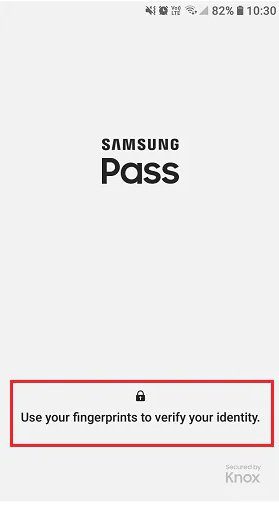
Step 4 – Once, you are logged in to your Samsung Pass, you can see the list of apps and websites under the sign-in tab.
Step 5 – Now, you can simply tap on particular app or website to see the saved password. You can view the login information and passwords of each app and websites saved in Samsung Pass.
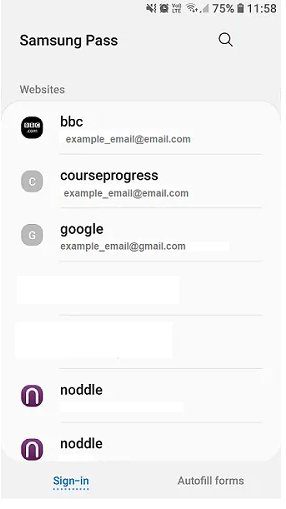
Here you can also edit or delete the information of individual apps or websites. In order to add or edit personal information such as address or card details, simply click on “Autofill forms” located at the bottom of the screen. You can then add, edit or delete your personal data.
You May Also Like:
- Password Autofill Not Working On Samsung? Here Is The Real Fix!
- Wireless Charging Not Working – [Samsung Help]
- My Emoji Keyboard Disappeared On Samsung? Here How To Fix!
- Ultimate Guide On Samsung S22/S22+/S22 Ultra FRP Bypass
Samsung Pass Is A Password Manager As Well As A Data Storage App
As I mentioned, Samsung Pass allows users to use their saved biometric information such as fingerprint, face recognition or iris to log in to accounts, apps or websites.
It also allows you to add your personal details, like your address and card detail, so you can autofill the details with ease.
Also, make a note that biometric data and personal details are saved only to your device, and it does not sync to any other devices.
Bonus Tip: Where You Can Find Samsung Pass Settings
Samsung users can find Samsung Pass Settings on their Samsung phones by following the below steps.
- Go to Settings > Biometrics and Security > Samsung Pass.
- Now you have to sign-in to your Samsung Pass account.
- Then tap on “three vertical dot” located at the top right corner and then tap on “Settings”.
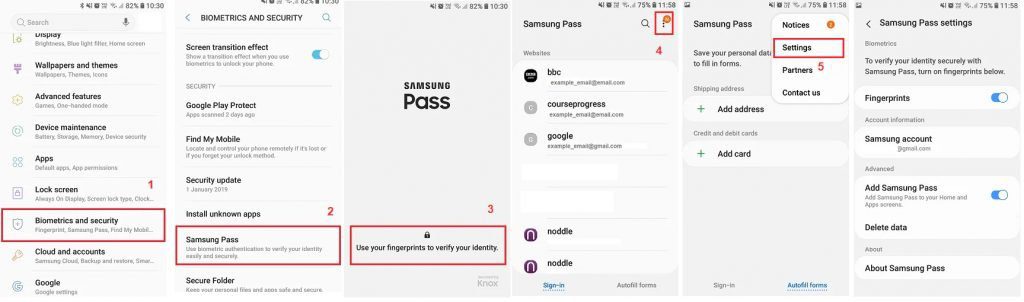
That’s It! Here You can see the Samsung Pass settings.
Also Read: How To Fix Samsung Pass “Couldn’t Verify Fingerprints”
Wrap Up
Saving passwords in Samsung Pass is simple and it makes your life easier. Also, you can easily view, edit or delete your saved password in Samsung Pass at any time.
Please support us by subscribing to our YouTube Channel.
If you have found this article to be helpful, then please share it as it can help others as well.

Max Field is a founder of Recover Android Data. He is an Android lover and loves to write tips, tricks, fixes for errors, data recovery solutions and more related to Android. Provide Gaming Tips, Tricks, Game Error/Issues Solutions (PC/Xbox/PlayStation/Mobile). He is now also interested in solving LinkedIn Puzzles. He has 12+ years of experience in this field.