
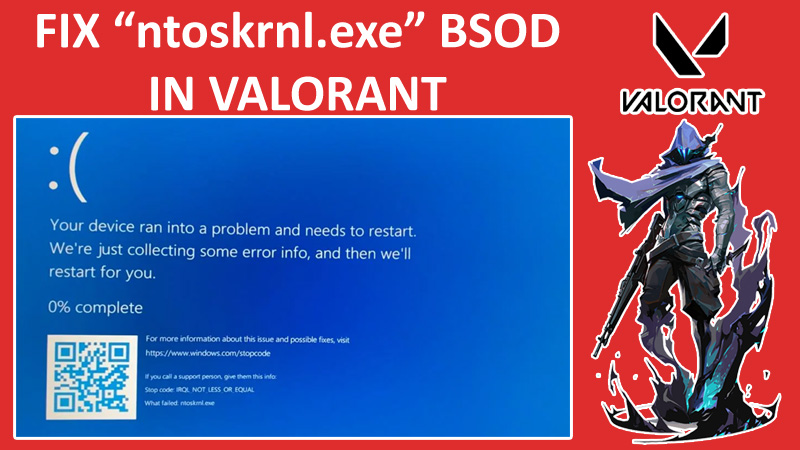
Are you getting a blue screen of death error when launching or closing Valorant?
Well, many users are getting the same error.
You may get these error codes when you run into the BSOD, “Stop code: IRQL_NOT_LESS_OR_EQUAL” and “ntoskrnl.exe”.
If you don’t have any idea of “ntoskrnl.exe”, it is a Windows system file that manages the memory and processes functions.
You may run into certain problems like BSOD if it starts malfunctioning.
Fortunately, there are few methods that can solve this problem.
In this guide, we will be covering the “ntoskrnl.exe” Blue Screen of Death (BSOD) error in Valorant and how can you fix it.
So, without wasting any more time, let’s check out the solutions.
How To Fix “ntoskrnl.exe” Blue Screen of Death (BSOD) in Valorant
To fix the BSOD issue, you have to disable Memory Integrity from the Windows settings.
Also, delete 3rd party software such as MSI Dragon Center and update the Windows.
Fix 1. Disable Memory Integrity
The first method that you can try is turning off the Memory Integrity present in the Core Isolation settings.
It is a security feature that protects your device from attacks and prevents malicious code from inserting high-security processes.
Don’t worry! It is safe to turn off this feature as long as you don’t visit suspicious websites.
You just have to turn it off temporarily until the Devs fix this issue. Make sure you don’t visit suspicious websites once you turn it off.
Here is how you can turn it off.
- Search for Core Isolation in the Windows Search and open it. (You can also go to the Windows Security, then Device Security > Core isolation details).
- Here, turn off the toggle under Memory integrity.
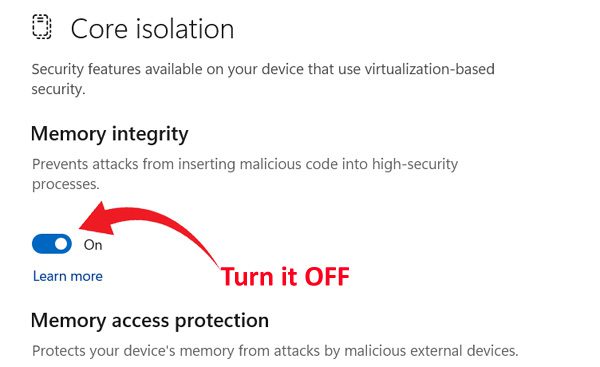
Now, you will not face the BSOD issue when launching or closing Valorant.
Fix 2. Disable OverWolf Tracker
If you are using the OverWolf tracker, then you may also get the BSOD issue.
OverWolf is a Valorant tracker that helps the player to see the stats such as “Win%”, “HS%” or “Current/peak Rank” etc.
Basically, it is a third-party player data aggregation software consisting of an overlay in the game to show the stats.
If you turn it off or uninstall it from your system, most probably the error will be gone.
So, do it once and try launching Valorant, if you don’t face any issues, then it is confirmed that it was the culprit.
Fix 3. Check For Windows Update
In this method, you need to update the Windows to the latest version. It seems a very basic solution but it has solved the issue for most of the users.
So, why not give it a try? Follow the below-mentioned steps to update your Windows.
- Press Windows + I to open Windows Settings and go to Windows Update. (You can also search for “Check for updates” in Windows search, then open it)
- Click on “Check for updates”, then click on Download & Install, if any update is available.
Fix 4. Uninstall/Delete MSI Dragon Center
MSI Dragon Center can also cause the “ntoskrnl.exe” BSOD (Black Screen of Death) issue.
MSI Dragon Center is a pre-installed app on the MSI Devices. It is basically a control center that helps the user to optimize their gaming performance, control RGB effects, fan speed, etc.
Many users have found that uninstalling MSI Dragon Center can fix the Black Screen of Death error.
If you are using it, then you can give it a try and check if that works in your case or not.
- In Windows Search, search for Installed Apps, then hit Enter.
- Here, look or simply search for MSI Center, then click on the 3 dots present next to it and select “Advanced options”.
- Scroll down and click on Uninstall.
Once done, try launching Valorant and check if this solves the problem or not.
Wrap Up
These were the few methods that can solve the “ntoskrnl.exe” BSOD (Black Screen of Death) problem when launching or closing Valorant.
I hope you have fixed the issue by carefully following and applying the steps.
If you find this guide useful, then share it with your friends.
You May Also Like:
- Fix Minecraft “We could not connect to Realms right now” Error
- Fix Wuthering Waves Crashing/Stuck on Loading Screen
- Fix Hellblade 2 Crashing/Not Loading/Black Screen on PC
- How To Fix WWE 2K24 Not Launching on Steam

Max Field is a founder of Recover Android Data. He is an Android lover and loves to write tips, tricks, fixes for errors, data recovery solutions and more related to Android. Provide Gaming Tips, Tricks, Game Error/Issues Solutions (PC/Xbox/PlayStation/Mobile). He is now also interested in solving LinkedIn Puzzles. He has 12+ years of experience in this field.