
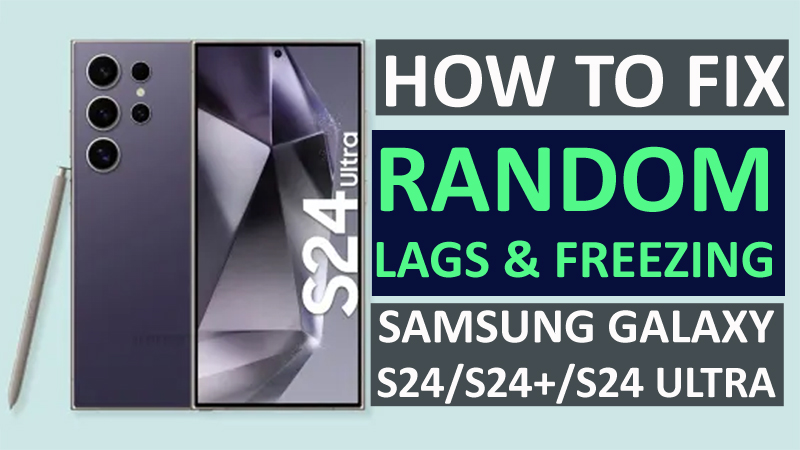
Is your Samsung S24 series phone randomly start lagging or freezing? If Yes and you are looking for solutions to fix it then you have landed on the right web page.
This guide will provide you with some possible methods to fix Samsung Galaxy S24, S24 Plus, or S24 Ultra that randomly freezes or lags.
Before learning the solutions to fix lagging or freezing on the Samsung S24 series phones, you should first know the causes of why Samsung S24 series phone keeps freezing or lagging.
Causes: Why Does Samsung S24/S24 Plus/S24 Ultra Freezing And Lagging?
The first thing that you need to know to solve the issue is to identify the root cause of this issue. When we talk about random freeze or lag on Samsung S24 Ultra, S24+, or S24 then several factors can be responsible for it:
- Unstable mobile data or Wi-Fi connection.
- Insufficient storage space.
- Virus or malware infections.
- Outdated software.
- Too many apps running in the background.
- Hardware issue.
By knowing the reasons for this issue, you can follow the targeted solutions to solve the problem.
Fix Samsung Galaxy S24 (Plus) (Ultra) Keeps Freezing & Laging Randomly
Fix 1: Restart Your Device
A simple restart can work very well for most of the time. So, you should first try it.
To restart your Samsung S24 series phone you need to press and hold the Power button and then hit on “Restart”.
Fix 2: Close All Background Apps
Apps can consume a lot of resources that can slow down your smartphone.
Below, follow the steps to close all background apps:
- Unlock your phone and tap on Recent Apps button.
- Then hit on Close all option to remove all the apps running in the background.
Fix 3: Install Latest Update For Your Samsung Phone OS
If you are using outdated firmware then this can cause various types of issues including the lagging and freezing issue.
Hence, you should check the update for your Samsung S24 series phone.
Below, follow the steps to do this:
- Open the Settings app on your phone.
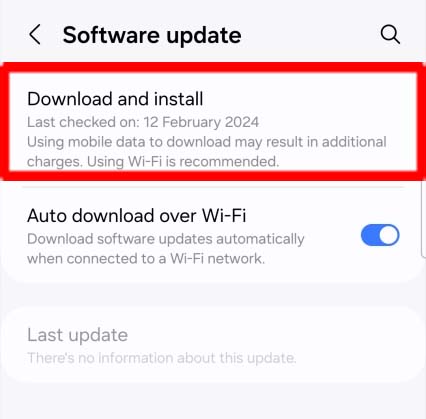
- Then tap on “Software update”.
- Next, hit on “Download and Install” button.
- If you find the update then follow the on-screen steps to download and install it.
Fix 4: Ensure Your Device Has Enough Storage
If the storage space of your device is almost full then this can slow down your device.
Therefore, you should check the storage space on your phone and if you find it almost full remove some unwanted data or apps.
Here learn how to check the storage space:
- Go to Settings.
- Then tap on Device Care.
- Next, hit on Storage.
- Here, you can view how much storage space is left on your phone.
Fix 5: Update Your Apps
Outdated apps can also trigger the phone to lag or freeze. Hence, you should update your phone.
You can update the apps one by one or you can download the update for all apps at a time.
To update the apps at once, you need to open the Google Play Store app. Then tap on your profile icon > Manage apps & device. After this, hit the Update All button.
Fix 6: Clear Cache & Data Of Problematic Apps
If you notice that particular apps are causing the lagging or freezing issue then clearing the cache and data of these apps can solve the problem.
Below, learn how to clear the cache and data of the app:
- Navigate to Settings > Apps.
- Find the problematic app and open it.
- Next, hit on Storage.
- At last tap on the “Clear Cache” & “Clear Data” buttons.
Fix 7: Remove Viruses & Malware Via An Antivirus App
If you notice that viruses are causing this issue then you can download and install an antivirus app from Google Play Store and run a scan to remove any threats.
Fix 8: Boot Your Samsung Device Into Safe Mode
When you enter your Galaxy phone or tablet into safe mode then it disables all the installed apps except the preinstalled one.
If in this mode your phone is not lagging or freezing then it means that the 3rd party apps are the culprit and to solve the issue you need to uninstall the recently installed apps.
You can boot your Samsung Galaxy S24/S24+/S24 Ultra from here.
Fix 9: Wipe Cache Partition
If the random freezing or lagging issue is causing due to corrupted cache data of your phone then wiping the cache partition can solve this issue.
Here are the instructions to wipe the cache partition of your Samsung S24 series phone:
- Firstly, you need to boot your Samsung phone into Recovery mode.
- Then using the Volume down key highlight the “Wipe cache partition” option.
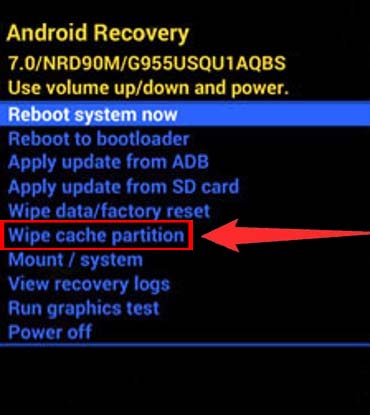
- Next, select it using the Power key.
- Now, highlight the “Reboot system now” option using the Volume Down key and select it using the Power key.
Fix 10: Reset All Settings
You can reset all settings to solve random lags or freezing problems by resetting your phone’s settings.
Below learn how to reset all settings on a Samsung phone:
- Open the Settings
- Tap on General Management.
- Next, hit on Reset.
- Now, tap on Reset all settings and confirm it from the following screen.

Fix 11: Factory Reset Samsung Device
If all the solutions fail then you can factory reset your phone to resolve the issue.
However, be sure to back up your device’s data before you continue to reset your phone.
Here are the steps to reset your Samsung Galaxy device:
- Navigate to Settings > General Management > Reset.
- Then tap on Factory data reset.
- Now, scroll down and tap on Reset.
- At last, tap on Delete all.

Bonus Tip: Prevention For Future Lagging And Freezing Problems
You can follow some tips to keep your Samsung S24 series phone from freezing or lagging in the future.
Here are some of the tips:
- Keep the apps and your device OS updated to its latest version.
- Always try to remove unnecessary apps or data from your phone to manage the storage space.
- Try to clean the cache and data of the apps to prevent the issue.
- Don’t download apps from unknown sources as these files can bring malware or virus to your device.
- You can use a trusted antivirus app to protect your phone from possible threats.
Wrap Up
It is a frustrating experience when your Samsung S24 series phone starts lagging or freezing.
However, you can fix random lags and freezes on Samsung S24/S24 Plus/S24 Ultra by following the solutions disused above.
I hope this guide will help you to resolve the problem easily and you can prevent your Samsung phone from this issue in the future.
You May Also Like:
- FIX: Samsung S22 (Plus)/S22 Ultra Freezing and Lagging After Update
- Fix Camera Shutter Lag & Blurry Photos On Samsung S24/S24+/S24 Ultra
- How To Fix Samsung Galaxy Z Flip 5 Lagging Problem
- How To Fix Samsung S24 Ultra, S24 Plus, S24 GPS Not Working

Max Field is a founder of Recover Android Data. He is an Android lover and loves to write tips, tricks, fixes for errors, data recovery solutions and more related to Android. Provide Gaming Tips, Tricks, Game Error/Issues Solutions (PC/Xbox/PlayStation/Mobile). He is now also interested in solving LinkedIn Puzzles. He has 12+ years of experience in this field.