
You decided to watch your favorite show on your Vizio Smart TV but it started showing a “No Signal” error message on your TV screen.
This can be a very frustrating moment for any viewer but you don’t need to worry as this tutorial will provide you with possible methods to fix the signal issue on Vizio Smart TV.
Before we dig into the solutions let’s first know why your Vizio Smart TV showing a “no signal” error.
Reason: Why does Vizio Smart TV Keep Showing a “No Signal” Error?
There could be several reasons why your Smart TV can show no signal error prompt.
Below, we have listed the common reasons for this error.
Loose Connection & Faulty Cables: If the HDMI cable is not securely plugged into the Smartt TV or if the cable is damage, then also you will face this problem.
Incorrect Input Source: Generally, the TV receives the signal from the chosen input source and if you select the wrong input source then it will show the no signal error.
For example, if your smart TV is connected to the HDMI 1 input and you have selected the HDMI 2 input then this error will appear.
Software Conflicts: Software conflicts can also prevent your TV from receiving a proper signal and causing this error.
Hardware Issues: If your Vizio TV has hardware issues such as damaged cables, ports, and motherboard then also you will face this issue.
So, these are some of the common causes for the no signal error on Vizio Smart TV. Now, we will learn the solutions to resolve this problem.
How To Fix Vizio Smart TV “No Signal” Issue
Here we have discussed some quick and effective solutions to fix the signal issue on Vizio Smart TV.
Fix 1: Restart Your Vizio Smart TV
When you are watching local TV channels or switching to your streaming device or set-top box then your TV will show you the “No Signal” error.
In this case, you need to switch off your Vizio smart TV and unplug it from the power source. Wait for a few seconds so that your TV will soft reset itself.
After 30 seconds you can plug the TV cable into the power source. Now, switch to the input source to which your TV channels or streaming device is connected.
Fix 2: Check Your HDMI Port
The Smart TV comes with various input sources hence it is necessary to select the correct input source to get a stable signal for your TV.
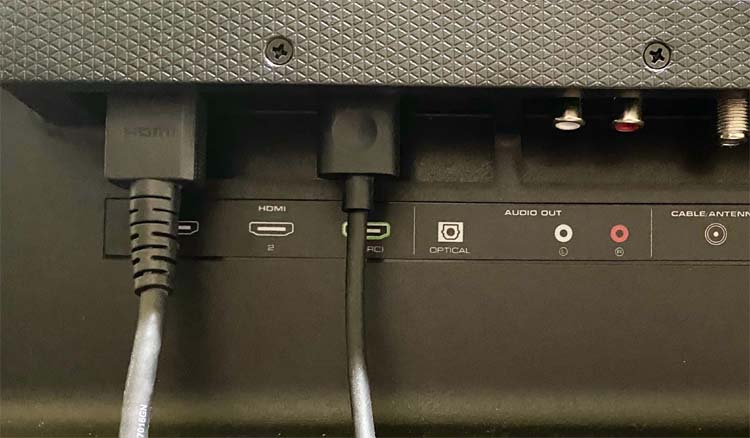
You can check that you are watching the correct input source by pressing the input button on the TV remote.
Once you change the input source to the correct source then you can stream the video easily on your Smart TV.
Fix 3: Check Cables Are Not Loosely Connected
You need to check whatever device you are connecting to your TV is connected properly to their respective ports, be it the set-top box, streaming device, or game console.
If they are not connected properly or if the connecting cable is loose then check it and connect it again. And if the TV needs external power, then ensure you are providing it.
Fix 4: Make Sure Cables Are Not Damaged
You are advised to check that the cables are not damaged. If you find any physical damage on the HDMI cable then make sure to replace it with the new one.
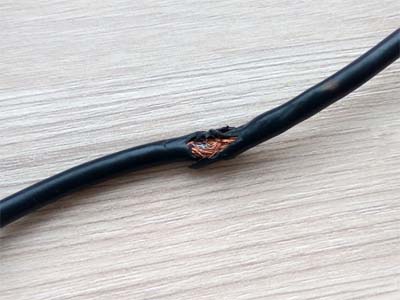
Also, you need to check the HDMI port is not damaged. If you found physical damage on the HDMI port then you can replace it by visiting a nearby service center or local store.
Fix 5: Switch HDMI Port
You can switch to another HDMI port to solve this issue. For instance, if you are using an HDMI 2 slot then try to use the HDMI 1 slot and then change the input source from your Smart TV remote.
Now, check whether the problem is resolved or not. If not then follow the next solution.
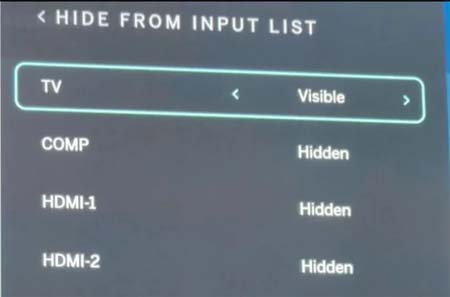
Fix 6: Ensure The Input Source Is Not Hidden
If the input source is hidden on your Smart TV then you can face this issue. It happens because you can’t access the input button.
So, to get the proper signal strength, unhide the input source on your Vizio Smart TV.
If the input source is hidden then unhide it by using the below steps:
- Press the Menu button on your Vizio TV remote.
- Next, click on System.
- Now, choose the Hide Input from the list.
- You can now unhide the input source on your TV.
Note: The above steps will work on new Vizio TV models. If you have an older model then follow the below steps:
- Press the Menu button on your TV remote.
- Then select Input settings.
- Now, your TV will show a list of all input sources on the screen.
- Choose the input source that you are trying to connect and press OK.
- Now, it will show you different options, select the one that says Hide from the Input list and then select Visible.
Fix 7: Factory Reset Your Vizio Smart TV
If there is any software issue or technical glitch on your TV then this can also display “No Signal” error. And to fix it you need to reset your Vizio Smart TV.
Here learn how to do this:
Steps To Factory Reset Vizio Smart TV Without Remote:
- Press and hold the Volume Down and Input buttons simultaneously on your TV remote.
- After a few seconds, it will display a screen that will show you how to reset.
- Press and hold the Input button.
- Now, it will start resetting your TV.
- When the reset process gets completed then TV will restart and it will redirect you to the setup screen.
Steps To Factory Reset Vizio Smart TV From Service Menu:
You can also reset the TV from the service menu. This may work if the main functions button is present on the TV remote.
Here learn how to do this:
- Shut down your Smart TV.
- Then press and hold the Channel Up and Down button.
- Continue pressing the channel buttons, then press and leave the Power button.
- Leave the Channel buttons and press the Menu button.
- When the Menu pops up on the Smart TV screen, again press and hold the Menu button.
- The service menu will be displayed on the screen.
- From the Service menu, select the Factory Reset option to continue the reset process.
Once the reset process is completed, set up your Vizio TV and then check the “No Signal” error is solved or not.
Fix 8: Contact Vizio Support
If you have tried all the above solutions but still you are unable to view content on Vizio Smart TV then it is time to contact Vizio support.
They will help you to solve the internal issues due to which a “No Signal” error occurs on your TV. Ensure you have your model number and warranty card of your Vizio Smart TV in hand while you contact them as they will ask for it.
Wrap Up
So, there are some methods through which you can fix the “no signal” issue on your Vizio Smart TV.
We hope that the solutions will work for you and after this, you can watch your favorite stream without any issue.
If this guide helped you in any way, then don’t hesitate to share it so that it can help other users.
You May Also Like:
- How To Fix NBC App Not Working on Samsung Smart TV
- How To Fix Netflix Not Working On Smart TV
- How To Fix Showmax Not Working On Smart TV
- How To Fix Can’t Mirror Galaxy S24 Screen To A TV

Max Field is a founder of Recover Android Data. He is an Android lover and loves to write tips, tricks, fixes for errors, data recovery solutions and more related to Android. Provide Gaming Tips, Tricks, Game Error/Issues Solutions (PC/Xbox/PlayStation/Mobile). He is now also interested in solving LinkedIn Puzzles. He has 12+ years of experience in this field.