
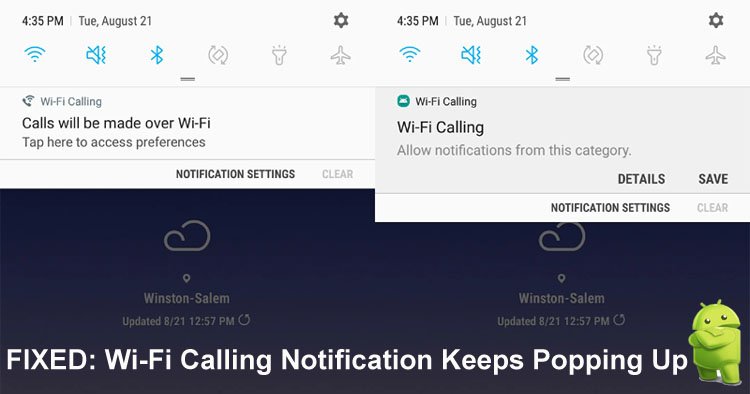
Fix Wi-Fi Calling Notification Keeps Popping Up Or Wifi Calling Preferences Notification Keeps Popping Up On Android!
Is the Wi-Fi calling notification keeps popping up on your Android phone or tablet? Do you want to get rid of wifi calling preferences notification keeps popping up? Struggling hard to fix it but you failed to fix this issue. But now, you don’t need to worry as this article will teach you some easy and proven solutions to fix Wi-Fi calling notifications keeps popping up on Android.
- Solution 1: Restart Your Android Device
- Solution 2: Enable And Disable Airplane Mode
- Solution 3: Disable And Enable Cellular Data And Wi-Fi
- Solution 4: Turn Off WiFi Calling Feature
- Solution 5: Set “Calling Preference” To Wifi Only
- Solution 6: Minimize Notification
- Solution 7: Update Your Android OS
- Solution 8: Reset Network Settings
- Solution 9: Clear Cache And Data Of Wi-Fi Calling App
- Solution 10: Factory Reset Your Phone
- Related Frequently Asked Question [FAQs]
Before we move further, let us first look at a real user practical example.
Practical Example: A Users Don’t Want Wi-Fi Calling Notification
How do I get rid of it? It keeps popping up and I don’t want it. Thanks.
Source: Android Central Forums
Like this practical example there are also other Android users who are going through this error and wants to know why it is causing and how to get rid of it.
So, let’s first know why does Wifi calling keep turning on.
Also Read: How To Fix Wi-Fi Stuck On Obtaining IP Address On Android
Why Does Wi-Fi Calling Notification Keep Popping Up On Android?
There could be multiple factors that can lead to this Wi-Fi calling notification on your phone. Some of the major reasons are listed below.
- When you have not installed the latest Android OS.
- If you have enabled the Wi-Fi calling feature on your phone’s settings and forget to disable it.
- When your phone’s network settings are incorrect.
Well, these are the common causes of this issue.
And the solutions to fix Wi-Fi calling notification keeps popping up or to get rid of wifi calling preferences notification keeps popping up on your Android phone or tablet are discussed below.
So, just go through the solutions one by one and see if your problem gets solved or not.
Video Tutorial: Fix WiFi Calling Notification Keeps Popping Up On Android
Solution 1: Restart Your Android Device
Resting is the best and simple solution to fix Android-related issue that is causing due to minor glitches in the phone. So, you should first try this tip and if it has not worked then follow the next solutions.
To restart your Android device, simply press and hold the Power key unless the Power menu pop-up on the screen. Now, from there select Power Off option and tap on it for a few seconds to completely switch off your device. After that, switch it on by pressing the Power key until you see the Android logo.
Also Read: Fix Wi-Fi Calling Not Working On Samsung Galaxy S20 (Plus)/S20 Ultra
Solution 2: Enable And Disable Airplane Mode
You can also turn off wifi calling notification on Android by enabling and disabling AirPlane mode.
To enable it, simply scroll down the screen to go to Quick Settings menu. Here, you will find the Airplane mode/flight mode icon, toggle it on to enable Airplane mode. And after a few seconds disable it by topping on Airplane mode icon.

Solution 3: Disable And Enable Cellular Data And Wi-Fi
As this notification is related to Wi-Fi, therefore you should first disable the Wi-Fi and see it has fixed the Wi-Fi calling notification or not.
If not then disable mobile data by scrolling down from the top to bottom to go to Quick Settings menu. Then turn the Mobile data icon to off position and then again tap on it again to enable it.
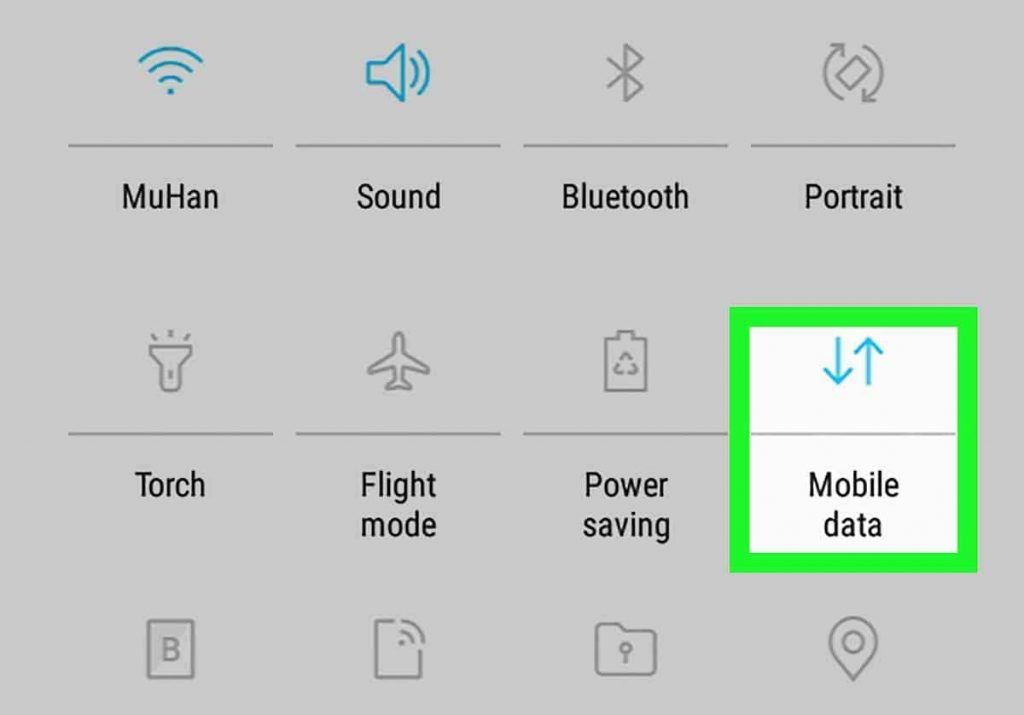
Now, check whether the Wi-Fi calling notification is disappeared or not.
Also Read: How To Fix Missed Call Notification Won’t Go Away On Android
Solution 4: Turn Off WiFi Calling Feature
If the Wi-Fi calling feature is enabled on your Android device then you may get a Wi-Fi calling notification continuously on your Android mobile. In this case, you need to disable the Wifi calling feature to solve the problem.
Below, learn the steps to turn off Wi-Fi calling feature on Android.
Step 1: Tap on Settings icon to open it.
Step 2: Then select Connections.
Step 3: After that, go to Wi-Fi Calling option and toggle the switch to off position.
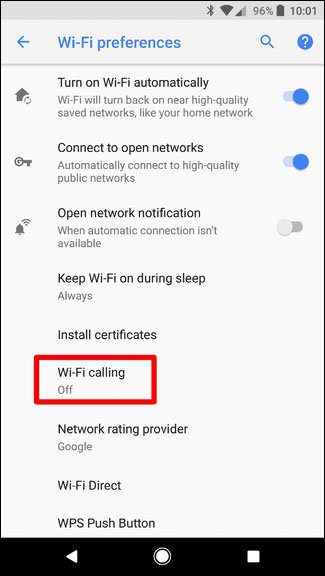
Solution 5: Set “Calling Preference” To Wifi Only
If you are receiving the Wi-Fi calling preferences notification on your Android device then you need to set a calling preference to “Wi-Fi only”.
To do that, go to Settings > Network Settings > Wi-Fi calling preferences. Now, select “Wi-Fi only” option.
Also Read: How To Fix Incoming Call Not Showing On Android Phone Screen
Solution 6: Minimize Notification
Another way to get rid of WiFi calling notifications is by minimizing notifications.
Below, follow the steps to do the same.
Step 1: Run the Settings app on your phone.
Step 2: After this, tap on Notifications and then on Recently Sent.
Step 3: Now, hit on See All and then on More.
Step 4: Next, Show the system applications and the Wi-Fi Calling.
Step 5: Then tap on Categories > Wi-Fi Calling.
Step 6: Lastly, hit on Notification Style and then Silent and minimized.
Solution 7: Update Your Android OS
If the wifi calling notification won’t go away then you should find the update for your Android device. If you get the latest version of Android OS for your device then immediately install it.
Here, follow the simple steps to update Android OS.
Step 1: On your Android device, open the Settings app.
Step 2: After that, hit on System Update or About Phone (the option may vary from phone to phone model).
Step 3: Now, hit on Check for update (on some phones you don’t need to do that).
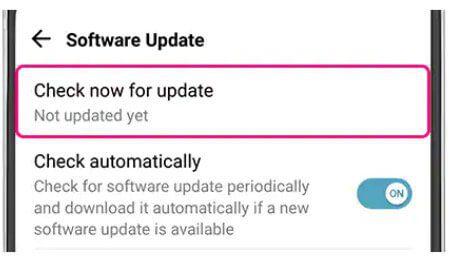
Step 5: Next, simply download and install the latest update for your Android device.
Also Read: Can’t Share Wifi Password on Samsung Phone? Here What To Do?
Solution 8: Reset Network Settings
If Wi-Fi calling notification is occurring due to wrong settings on your device then you can reset it to fix the problem. But before doing that you can make a note of your important password as it will reset all the settings of your device to default.
Follow the below steps to learn how to reset network settings on Android.
Step 1: Head to Settings > Backup and Reset.
Step 2: Then select Reset option.
Step 3: Now, hit on Reset Network settings and then you need to wait unless the process gets completed.

Step 4: Once it is completed, go to Wi-Fi settings and connect your device to wifi again.
Also Read: How To Recover Deleted Call History From Truecaller
Solution 9: Clear Cache And Data Of Wi-Fi Calling App
If the cache files of Wi-Fi calling app gets corrupted then it can also use Wi-Fi calling keeps popping up notification. So, to fix it you need to clear the cache and data of Wi-Fi calling app.
Below, follow the steps to clear the cache and data of Wi-Fi calling app.
Step 1: Navigate to Settings > Apps.
Step 2: Then find Wi-Fi Calling app and open it.
Step 3: After that, tap on Storage.
Step 4: Next, hit on Clear Cache and Clear Data button.
Solution 10: Factory Reset Your Phone
If Wi-Fi calling still popping up notification then lastly you need to factory reset your phone.
Since it will erase the saved data and settings on your phone, it should be considered as a last resort and before applying the steps you should first backup your device data.
Now, follow the below steps to factory reset your Android device.
Step 1: Navigate to Settings > General Management.
Step 2: After that, hit on Reset.
Step 3: Then on Erase All Data (Factory Reset).
Step 4: Now, tap on “Reset device”.
Step 5: Next, hit on “Delete All Data”.
You May Also Like:
- How To Delete Call Logs Permanently From SIM Card On Android
- [Fast Fixes] 6 Android Problems and Possible Solutions
- How To Fix Security Policy Prevents Use Of Camera On Android
- What To Do If Samsung Internet Keeps Stopping
Related Frequently Asked Questions [FAQs]
Answer 1 – You can easily turn off Wi-Fi calling notification on your Samsung Galaxy phone by applying some tips. They are mentioned below.
Answer 2 – To fix “Wi-Fi calling preferences updated to optimize network experience” notification you need to follow the below steps. Step 1: Go to Settings on your smartphone. Step 2: Then hit on Connections. Step 3: Now, slide the lever for Wi-Fi Calling to the left to disable Wi-Fi calling. If it is enabled then you will get it grey.
Answer 3 – Here are some methods that you can apply to fix Wi-Fi calling not working issue.
Answer 4 – To stop wiFi from turning off automatically on Android you need to follow the below-mentioned solutions.
Answer 5 – The main reason for wifi turning on is when you are your device is near a strong or known Wi-Fi network. To fix this you can disable Wi-Fi calling feature on Android. Follow the below steps to do the same. Step 1: Head to Settings > Network & Internet. Step 2: Hit On Wi-Fi and then on Wi-Fi preferences. Step 3: Now, toggle “Turn on Wi-Fi automatically” to off positions to disable it.
Wrap Up
So, now we have reached the concluding part.
We hope after applying any one of the above solutions has helped you to fix Wi-Fi calling notification keeps popping up on Android.
Simply follow the solutions one after another until Wi-Fi calling notification stops occurring.
Please support us by subscribing to our YouTube Channel.

Max Field is a founder of Recover Android Data. He is an Android lover and loves to write tips, tricks, fixes for errors, data recovery solutions and more related to Android. Provide Gaming Tips, Tricks, Game Error/Issues Solutions (PC/Xbox/PlayStation/Mobile). He is now also interested in solving LinkedIn Puzzles. He has 12+ years of experience in this field.