

Learn 11 Different And Quick Solutions To Fix Pairing/Connecting Issues On Galaxy Buds Pro!
Overview: Galaxy Buds Pro is one of the premium categories of wireless bugs that gives a great sound experience. However, there are many users who are facing connectivity issues while pairing the earbuds with the device. So, if you are also encountering the same problem then just follow this guide to fix Galaxy Buds Pro pairing issue.
Why Galaxy Buds Pro Not Pairing/Connecting?
You can encounter Galaxy Buds Pro pairing issues due to multiple reasons. Some of them are listed below.
- Low battery on Galaxy Buds Pro.
- Unknown software bugs.
- If the connecting device has some problem.
- Bluetooth connection bug.
- If you have not updated the Galaxy Buds Pro.
- Hardware problem.
Also Read: Galaxy Buds Has Static/Humming/Buzzing Noise? Here’s Is The Fix!
Solutions To Fix Galaxy Buds Pro Pairing Problem
Here, I have discussed some solutions that will help you to solve the pairing issue. So, let’s start them one by one.
Video Tutorial: How To Fix Galaxy Buds Pro Pairing Issue
Solution 1: Soft Reset Galaxy Buds Pro
You can simply soft reset Samsung Galaxy Buds Pro to fix the pairing problem.
To do this, put the buds in the case and enclose the lid. Wait for a few seconds and then open the lid and allow the buds to the pairing mode. Now, it will automatically display on the screen of the connecting device. Now, check whether it is pairing with the mobile/laptop or not.
Solution 2: Check The Interference Problem
Nowadays our home or office has many wireless devices such as Wi-Fi routers, appliances, Galaxy Buds Pro, and repeaters that interrupt the functioning of each other and cause the pairing problem on Galaxy Buds Pro.
So, if you are trying to pair the buds with other devices where there are various wireless devices then you need to go to an isolated place.
Solution 3: Turn Off & On Bluetooth
If your Galaxy Buds Pro is not connecting then it may be possible that the Bluetooth feature on your phone or other device is not working fine. So, in this situation, you can simply turn off the Bluetooth service on your device and then turn on it again and check whether it is pairing or not. If not, then follow the other solutions.
Also Read: Solved: ‘Unfortunately, Bluetooth Has Stopped’ Error
Solution 4: Charge Up The Galaxy Buds Pro
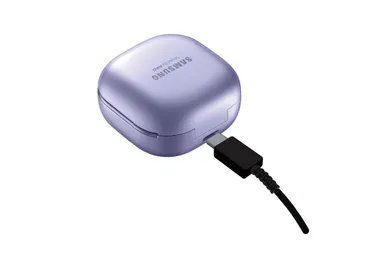
If your Galaxy Buds Pro has a low battery then it will not work as it should and you may face a pairing issue. So, ensure that your buds have sufficient battery. If it is low then charge it. Make sure the earbuds are properly connected to the charger and ensure that the wireless charger is dust-free and debris.
If not then clean it and place the buds properly on the wireless charger. You should use the official Samsung wireless charger for charging your Galaxy Buds Pro.
Solution 5: Unpair And Delete The Galaxy Buds Pro Profile
Another simple way to fix the pairing/connecting issue on Galaxy Buds Pro is by unpairing and deleting the profile of Galaxy Buds Pro. Doing this will re-sync the buds from starting and provide a more stable connection and solve the minor bugs that cause this issue.
Here, follow the steps to do the same.
Step 1: On your phone or laptop go to the Bluetooth Settings.
Step 2: Find Galaxy Buds Pro from the list of Devices.
Step 3: Choose Settings Symbol and then tap on Unpair.
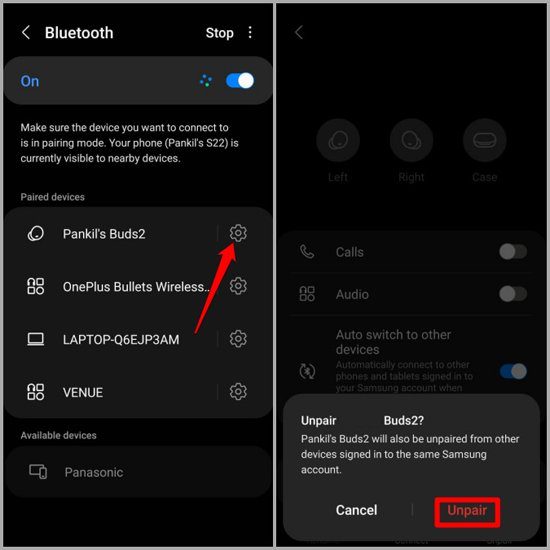
Now, you need to wait until the Galaxy Buds Pro removes from the list of pairing devices. After this, pair the device again.
Also Read: How To Fix Samsung Earbuds Only Playing In One Ear
Solution 6: Install Samsung SmartThing App
If you are trying to pair the Buds Pro with a Samsung phone and encounter this issue then you are advised to install the Samsung SmartThing app from Google Play Store. And then try to reconnect the Galaxy Buds Pro.
To reconnect, you need to open the Galaxy Buds Pro lid to initiate the pairing mode. Now, you will be able to see the list of Bluetooth devices on your Samsung Galaxy phone’s screen.
Solution 7: Restart The Galaxy Buds Pro
If there are bugs in the buds then it may also won’t let you connect your Samsung Galaxy Buds Pro to smartphones and laptops. And to fix the issue you need to restart the buds.
Below, follow the steps to restart Galaxy Buds Pro.
Step 1: If the charging case of buds is low on power (indicate red light), or if the Galaxy Buds Pro has a battery of less than 10% then ensure you connect the charging case to a charger first for a few minutes. Doing this will give the charging case and buds enough power while solving the issue.
Step 2: If you haven’t done it yet then place the buds in their respective charging case slot. Close the case and wait for a few seconds.
Step 3: Now, open the charging case and check if the Galaxy Buds Pro connects to your mobile or other devices automatically.
That’s All! Now your buds have been restarted successfully.
Also Read: Tips To Extend/Improve Samsung Galaxy Battery Life
Solution 8: Connect Galaxy Buds Pro To Another Device
You should try connecting the Galaxy Buds Pro with another device. If it easily connects on another device then it is clear that the first device has some problem. But if the buds also won’t pair to another device then the buds have some problems.
Solution 9: Check Software Update For Galaxy Buds Pro
If you are using the Galaxy Wearable (or Galaxy Buds Pro) app on your smartphone then you can check the software updates for it. These updates will solve the bugs and other issues on the buds that are causing the pairing problem.
Below, follow the steps to update the Samsung Galaxy Buds Pro.
Step 1: Run the Galaxy Wearable application on your mobile and navigate to Earbuds settings.
Step 2: Now, you need to scroll down and hit on Earbuds software update. This application will automatically check for the software update.
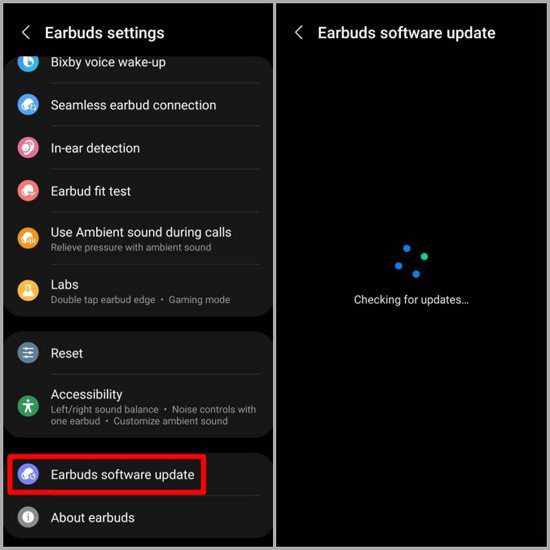
Step 3: After this, download and install all the pending software updates. Likewise, you can also update your Galaxy Earbuds Pro from your PC.
You May Also Like:
- How To Solve “Firmware Upgrade Encountered An Issue” On Samsung
- How To Repair “Camera Failed” Error On Samsung
- Transfer/Backup/Copy Contacts From Samsung Phone To PC
- How To Solve Mobile Network Not Available On Android
Solution 10: Factory Reset Galaxy Buds Pro
If the above solutions failed to fix the issue then you can factory reset the Galaxy Buds Pro. This will reset the Galaxy Buds Pro to its default mode. Don’t Worry! This will not lose data. But you have to start the pairing steps the same as when you first unbox your buds.
To start this process, place the Galaxy Buds Pro into the case and let them charge for 30-40 minutes. After this, you need to follow the below steps.
Step 1: On your smartphone open the Galaxy Wearable app.
Step 2: Then tap on Earbuds settings.
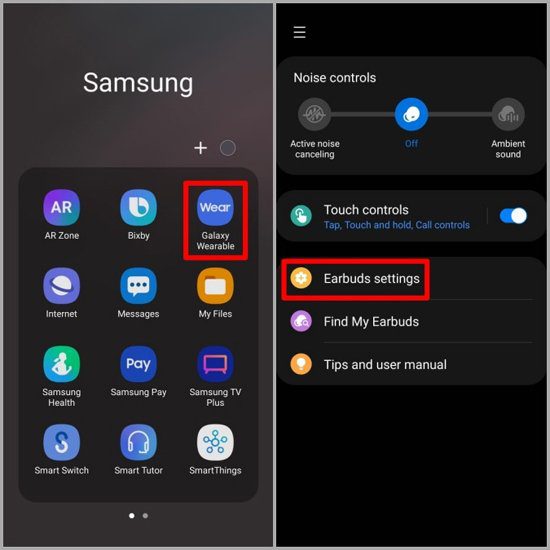
Step 3: Tap on Reset and again hit on Reset on the prompt to start the reset process.

Also Read: Fixed: Samsung Phone Stuck On Odin Mode
Solution 11: Contact Samsung Support
If factory resetting the earbuds didn’t solve the pairing problem then lastly you should contact Samsung Support. They will give more insight into the pairing or connection problem with the Galaxy Buds Pro. If your buds are under warranty period then you can exchange them.
Wrap Up
I know how much you get irritated when you wish to hear music, watch videos, etc. by connecting your Galaxy Buds Pro with your smartphone or other devices but you can’t do this because of the pairing issue.
But now you can easily fix Galaxy Buds Pro pairing problem by applying the above-mentioned solutions. So, simply try the solution one by one until you solve the pairing issue.
Please support us by subscribing to our YouTube Channel.

Max Field is a founder of Recover Android Data. He is an Android lover and loves to write tips, tricks, fixes for errors, data recovery solutions and more related to Android. Provide Gaming Tips, Tricks, Game Error/Issues Solutions (PC/Xbox/PlayStation/Mobile). He is now also interested in solving LinkedIn Puzzles. He has 12+ years of experience in this field.