
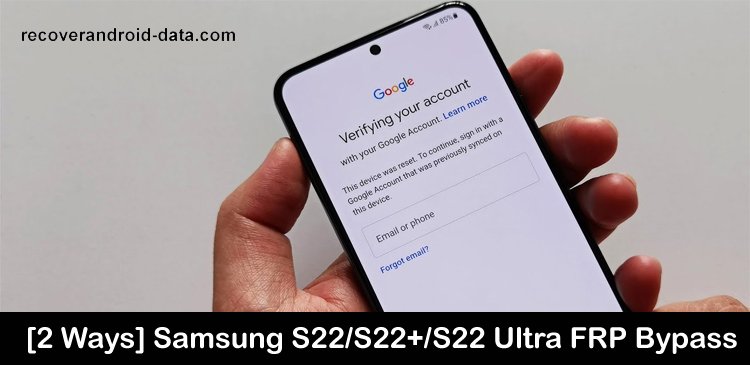
Learn 2 Effective Solutions To Bypass/Remove/Unlock/Disable FRP (Factory Reset Protection) On Samsung Galaxy S22/S22+/S22 Ultra!
Samsung Galaxy S22 series phone has powerful features including an FRP system. To bypass FRP (Factory Reset Protection) you need to enter the Google account details and if you forget them then you can’t access your device.
So, if you have also turned on FRP on your Samsung Galaxy device and you forget the Google account details and due to this you are unable to unlock FRP then don’t worry. Simply read this guide, here you will learn how to bypass FRP on Samsung Galaxy S22/S22+/S22 Ultra.
 Expert Tip: One of the easy and hassle-free ways to bypass/unlock FRP on Samsung S22/S22+/S22 Ultra is by using Screen Unlock software.
With the help of Android Unlock tool, you can:
- Easily remove/unlock/bypass/disable FRP lock without Google account or PIN.
- Also, remove different types of screen lock on Samsung phones.
- Unlock your locked screen without any data loss.
- Very easy to use and provide a high success rate.
Free Download Trial Version/Buy Now Android Repair Tool To Bypass FRP Lock On Samsung Galaxy S22/S22+/S22 Ultra
 |
 |
What Does FRP Lock Mean On Samsung Galaxy S22/S22+/S22 Ultra?
FRP (Factory Reset Protection) is a feature that allows Android users to protect their device data from unauthorized access. When you register a Google account on your Samsung S22 series phone then automatically the FRP feature will be turned on. As a result of this, when you factory reset your Galaxy phone this FRP feature will ask you to enter the Google account credentials that you have used while logging into your Galaxy mobile. Once you enter the details all data on your phone will get restored after a factory reset. So, it is a very powerful feature that users can use.
However, sometimes users forget the Google account details or they don’t know the Gmail ID (because they have bought a second-hand phone) that is linked to Galaxy S22, S22+, or S22 Ultra. In this situation, you need to bypass Samsung S22 FRP lock to access your phone. Below, you will find solutions to bypass FRP lock on Samsung Galaxy S22 (+) (Ultra).
So, let’s learn the solution.
Solution 1: Remove/Bypass FRP On Samsung S22/S22+/S22 Ultra Using Android Unlock Tool
When you forget the PIN and Google account details of your Galaxy device and wish to unlock FRP lock then you should use professional Screen Unlock (Android) software. It will bypass FRP lock without using Google account details in just a few seconds.
|
|
For using Samsung Unlock tool you don’t need any ADB (Android Debug Bridge) features enabled on your Samsung smartphone. Besides it, you can also use it to remove 4 types of screen locks such as PIN, password, pattern, and fingerprints.
Supports all other brands of Android phones and tablets and all models of Samsung phones and tablets including Samsung Galaxy S22, S22 Plus, and S22 Ultra.
Here, follow the ultimate guide to bypass/remove FRP lock on Samsung S22/S22+/S22 Ultra via Android Unlock tool.
Also Read: How To Bypass/Remove FRP On Samsung Galaxy J5 Prime
Solution 2: Use Sam FRP Bypass Tool v1.4 Bypass Samsung S22/S22+/S22 Ultra
Important Tools And Drivers That You Need:
-
- A computer that supports Windows OS 7/8/10/11.
- Wi-Fi connection.
- USB cable.
- Sam FRP Bypass Tool v1.4.
- Special Samsung Drivers.
Important Note:
- When you remove the Gmail account from your Galaxy phone then it will wipe all your data. Therefore, you should first backup your device’s data.
- Your phone battery should be at least 50% before starting the steps.
- All mentioned operations are done at your own risk.
Now, follow the below steps to remove FRP/Google Account Verification from Samsung Galaxy S22, S22+, or S22 Ultra.
Step 1: Switch on your Galaxy S22 series phone and connect it to Wi-Fi.
Step 2: Then install Special Samsung Drivers if you are using Windows OS lower than Windows 10.
Step 3: Disable add Sam FRP Bypass Tool v1.4 tool or antivirus.
Step 4: Next, download and unpack Sam FRP Bypass Tool v1.4 software.
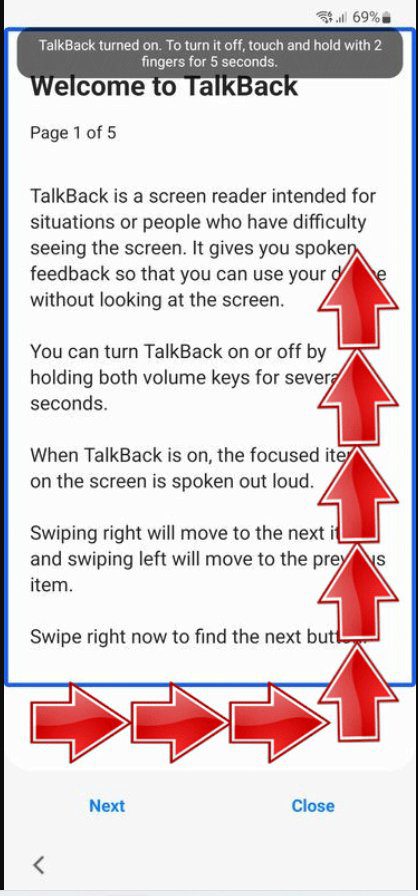
Step 5: Now, press both Volume Up and Power keys on your Galaxy S22 series phone.
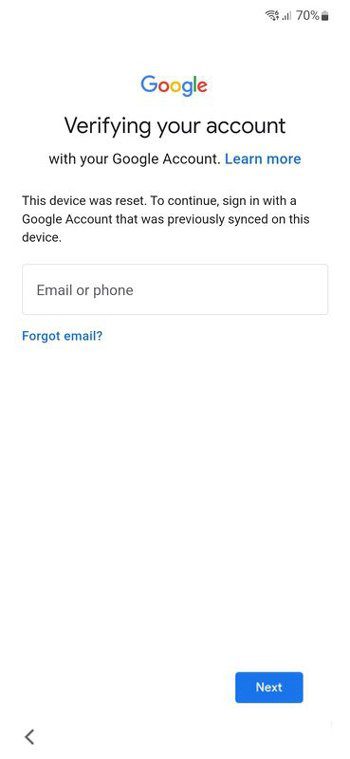
Step 6: Now, you will get a prompt, on that prompt tap on Use button and press the physical buttons to turn on the talkback.
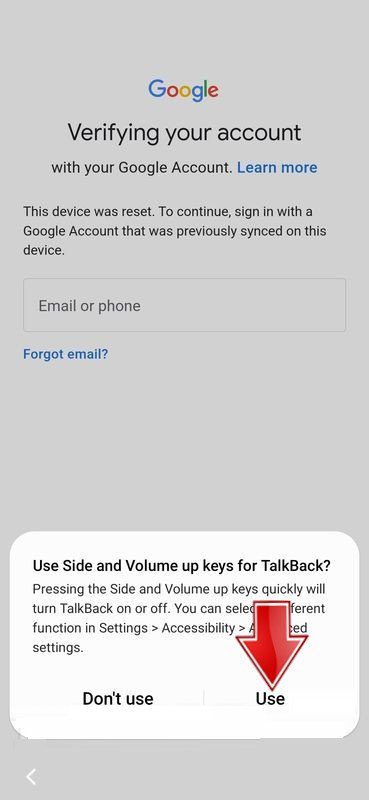
Step 7: Again press both Volume Up and Power keys to turn on talkback assistant.
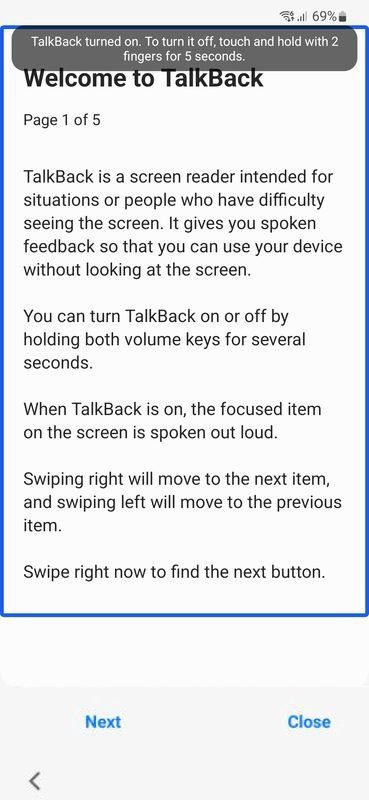
Step 8: After this, enter mirror L to open the voice command menu, on that screen press While using the app button then the Use voice command button.
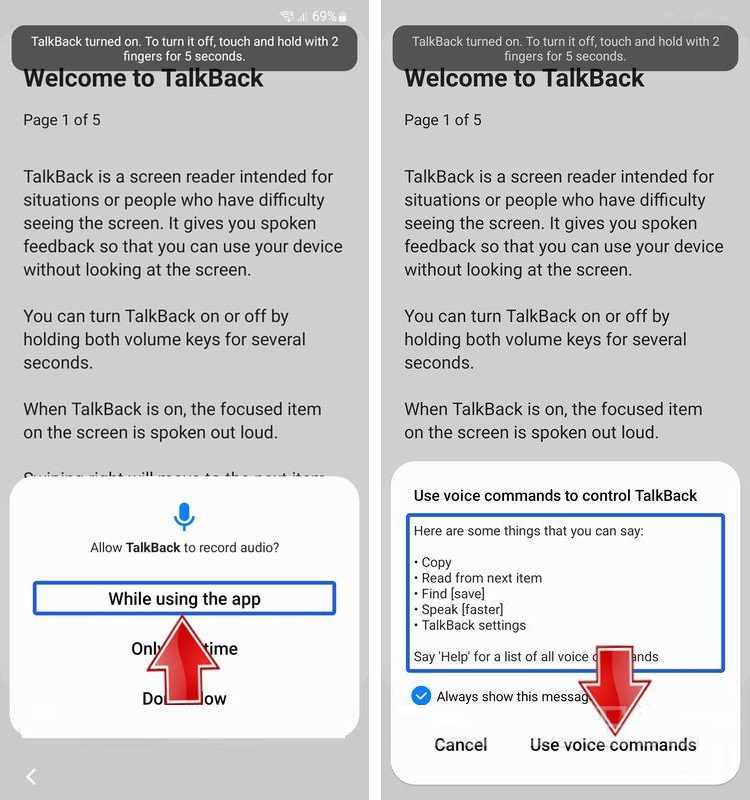
Step 9: Now, you need to speak “open Google assistant” on your Galaxy device.
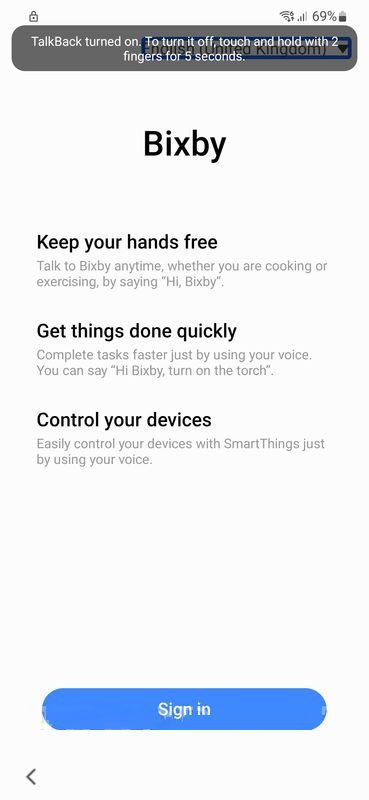
Step 10: Bixby Samsung voice assistant will open, use the Volume Up and Power buttons to disable talkback.
You May Also Like:
- How To Remove or Bypass Samsung Screen Locks – [PIN, Pattern, Password or Fingerprints]
- Recover Deleted Data From Samsung Galaxy S22/S22+/S22 Ultra
- Fix Wi-Fi Calling Not Working On Samsung Galaxy S20 (Plus)/S20 Ultra
- Samsung S10 Screen Rotation Not Working [Quick Fixes]
Related Frequently Asked Questions (FAQs)
After factory resetting your phone, you will not see the Android Lock system when you wish to unlock your phone next time. Here, follow the steps to do the same. Step 1: Open Settings app on your Galaxy phone and then scroll down and tap on Accounts and sync option. Step 2: After that, hit Google and then all your linked Google accounts will be shown. Select the Google account you wish to erase from your Galaxy device. Step 3: At last, hit Remove Account to remove your Gmail account and turn off FRP. Note: Google doesn’t recommend doing this.
No, factory reset doesn’t remove FRP from your Samsung Galaxy handset. When you factory reset your phone then it wipes the Google account and data but it doesn’t remove Android lock from system. Once you complete the reset process, you will be asked to enter a new Google Account to access the phone’s services.
Yes, you can bypass FRP. Above I have mentioned two ways to bypass FRP.
Once you bypass FRP you will start a clean slate on your device. Your phone will be back to the state when you first bought it (all installed apps and data will get deleted and you only find the default apps and settings). So, in this way you can remove malware and viruses from your phone.
Yes, Odin can bypass FRP.
Wrap Up
With the solutions discussed in this guide, you should now be able to bypass Samsung S22/S22+/S22 Ultra FRP. Among these two solutions, I would recommend you to use Android Unlock software as it has straightforward steps which will not confuse you and not consume more time in comparison to the second solution.
Please support us by subscribing to our YouTube Channel.

Max Field is a founder of Recover Android Data. He is an Android lover and loves to write tips, tricks, fixes for errors, data recovery solutions and more related to Android. Provide Gaming Tips, Tricks, Game Error/Issues Solutions (PC/Xbox/PlayStation/Mobile). He is now also interested in solving LinkedIn Puzzles. He has 12+ years of experience in this field.