In This Article, You Will Learn How To Fix Microsoft Ultimate Word Games Not Loading or Not Opening.

In This Article, You Will Learn How To Fix Microsoft Ultimate Word Games Not Loading or Not Opening.
In This Article, You Will Learn How To Fix Face ID Not Working For App Store on iPhone.
If you have found this guide helpful, then please share it, as it can help others!
Please support us by subscribing to our YouTube Channel.
You May Also Like:
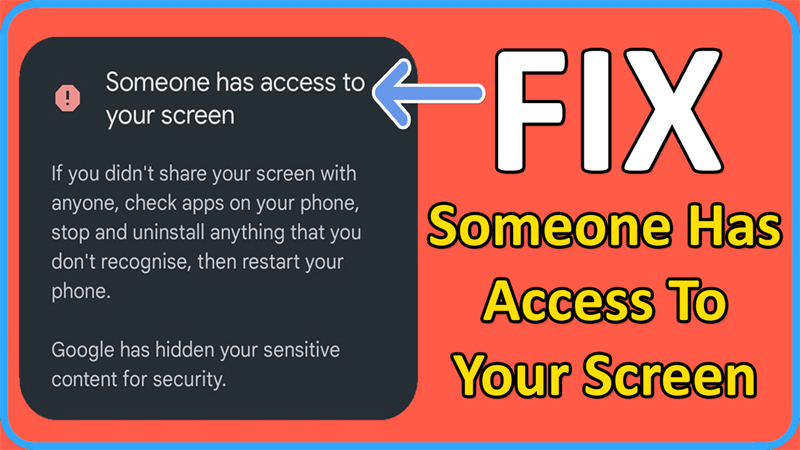
In This Article, You Will Learn How To Fix Someone Has Access To Your Screen. Also, Fix You’re Sharing Your Screen With Someone Message Problem.
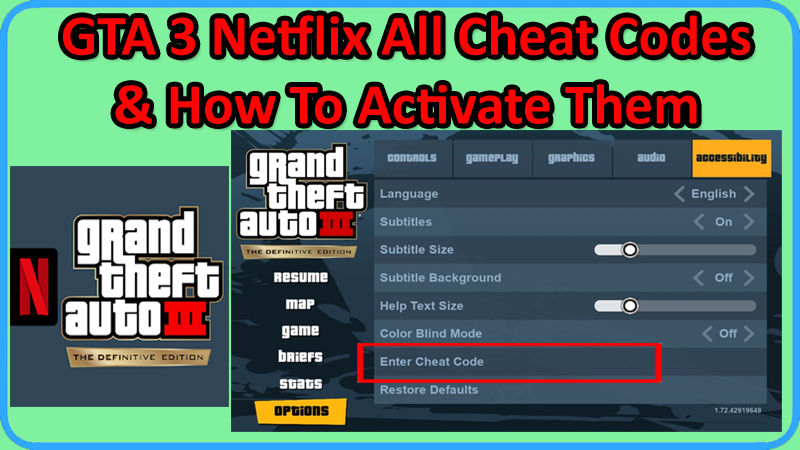
GTA 3 Netflix is available on Play Store.
The cheat codes for Grand Theft Auto 3 Netflix are also now available that will allow you to do almost everything such as from getting infinite health and armour to blowing all cars to changing weather.
So, in this article, you will know about all cheat codes for GTA 3 Netflix Edition and how to apply and use them.
Here are all the GTA 3 Netflix Edition Cheat Codes List, that you can use in the game:
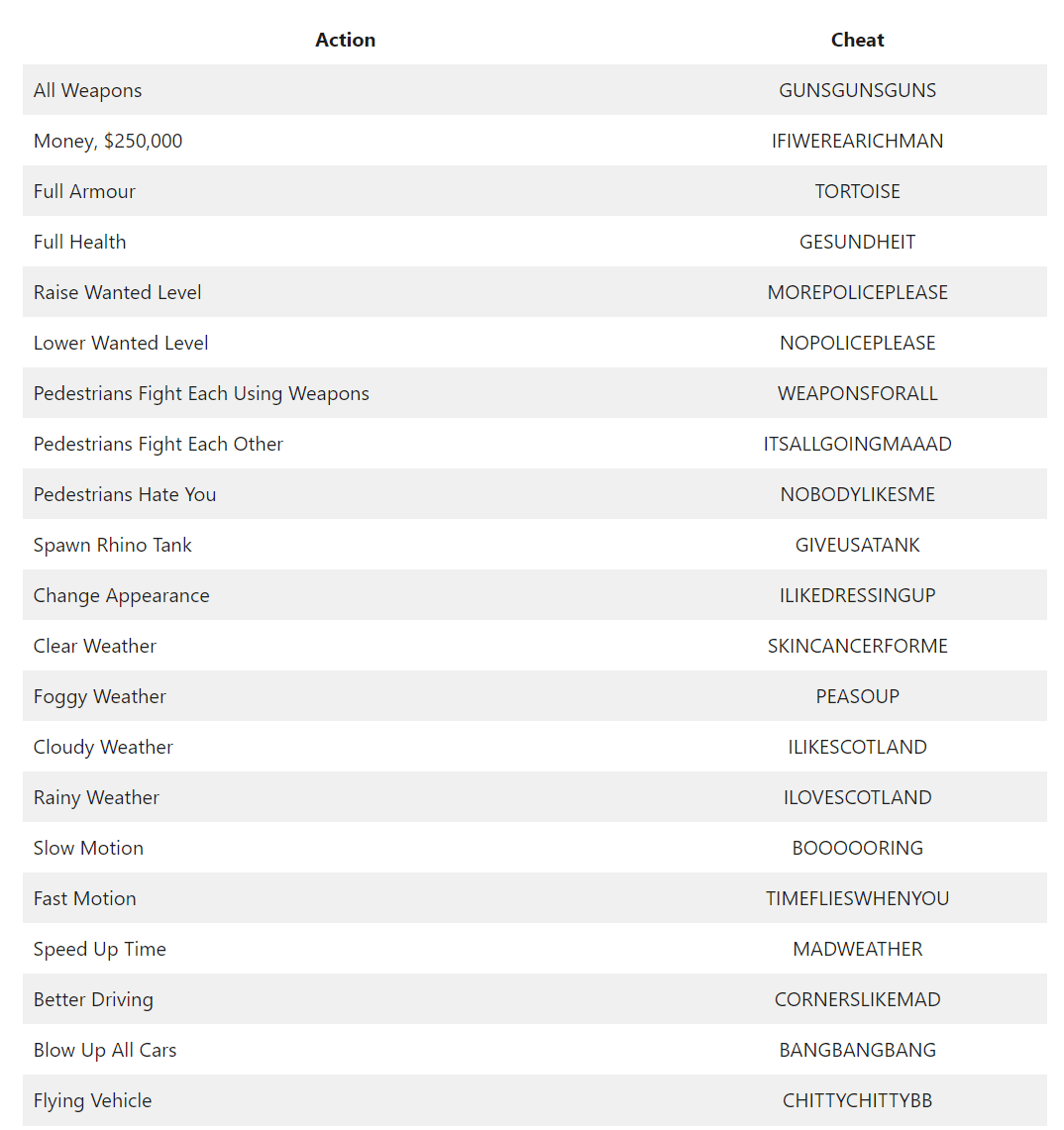
So, that was all the cheat codes for GTA 3: Netflix Edition.
Now the question is – How to activate and use Cheat Codes in GTA 3: Netflix?
Well! Don’t Worry!
Below, follow the steps to activate GTA 3 Netflix cheat code.
Step 1: Launch the game on your phone. (You can’t use the cheat code from main menu screen).
Step 2: Once, you are in the game, tap on “Map” in the upper left corner.
Step 3: Tap on “Options”.
Step 4: Tap on “Accessibility” tab.
Step 5: Then tap on “Enter Cheat Code” option.
Step 6: Enter your cheat code and press “OK” to confirm.
That’s All!
If you have found this guide helpful, then please share it, as it can help others!
Please support us by subscribing to our YouTube Channel.
You May Also Like:

GTA Vice City Netflix is available on Play Store.
The cheat codes for GTA: Vice City are also now available that will allow you to do almost everything such as from getting fat skin and weapon set to spawning particular vehicles and changing weather.
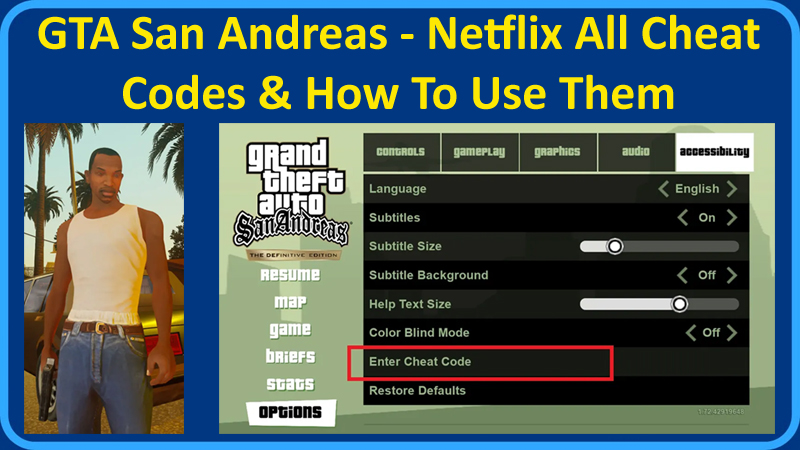
GTA San Andreas Netflix is available on the Play Store.
The cheat codes for GTA: San Andreas are also now available that will allow you to do almost everything such as getting infinite ammo and health to spawning particular vehicles and weapons.

In This Article, You Will Learn How To Fix “Blocked By Your IT Admin. If you have any questions, please contact your IT admin” on Android.
In This Article, You Will Learn How To Enable & Disable Auto Rotate on HONOR X6a or How To Turn On and Turn OFF Orientation Lock.