
Samsung recently launched the new Galaxy S23 Ultra, S23 Plus, S23 with comes with a 5000mah battery.
It has a wider vapor chamber as compared to the previous S series smartphones, which cools the phone more efficiently.

Samsung recently launched the new Galaxy S23 Ultra, S23 Plus, S23 with comes with a 5000mah battery.
It has a wider vapor chamber as compared to the previous S series smartphones, which cools the phone more efficiently.

Samsung launched the Samsung S23, S23 Plus, S23 Ultra. These series start getting loved, because of its amazing features.
It has a Dynamic AMOLED display with 1750 nits peak brightness and 120hz Refresh rate.

Is your Samsung S23, S23+ or S23 Ultra is not charging? If “Yes”, then you have landed on the right webpage.
If you are encountering charging issue with these smartphones, then you can take a look at the following troubleshooting guide to fix the issue.
This is the very first steps you must take, when you observe that your Samsung Galaxy S23 is not charging.
Often the causes could be the simple connection mishap.
In order to rule out that temporary glitch is to restart the phone.
Restarting the phone clears all the background services and it may solve the charging problem.
Besides that, a reboot also refreshes the component of your device. This actually wake up your phone from sleep or say lock state.
To perform quick reboot, simply press and hold the Power button. A Menu option will appear, tap on “Reboot”.
If your device starts charging normally again after a reboot, then congratulations, your problem is solved.
Also Read: Transfer Data From Android/iPhone To Samsung S23/S23+/S23 Ultra
This is another workaround that you must give a shot.
Simply remove the accessories such as case cover or any other attached things that has metal in it.
In some case, such accessories interrupts and avoid the device from receiving a proper power supply.
Leaving the screen protector, I would recommend you to remove everything from the phone and then charge your device and see if it works or not.
It could be possible that power outlet you are using does not provide sufficient amount of power and hence restricting the charging speed or completely stalled.
Hence, you must change the power outlet and see if that solves the problem.
Alternatively, to check you can also use computer, laptop or power bank to charge your device.
Note: I do not recommend charging your phone via laptop/computer on regular basis. You can just use it to check and verify.
Also Read: Backup And Restore Samsung Galaxy S23/S23+/S23 Ultra Data
Samsung S23 series phone comes with Android 13 and One UI 5.1.
But when users faces any issue, then they report the issue directly to the Samsung Community or Developer Forums, and the developer is very quick with the fixes.
These solutions are rolled out to users via software updates. They might release a new update in regular intervals to deal with minor/major bugs and glitches.
Hence, you must check for available updates.
After update, charge your phone and see if charging is working or not.
Let me tell you that Samsung has stopped giving the charging adapter and hence many people knowingly or unknowingly use incompatible charger and damage the device.
Please note that compatible and original charging cable and adapter are important things that many users ignore and end up spoiling the battery health and device.
So, if you are experiencing issue while charging Samsung S23, S23 Ultra or S23+, then make sure you are using Samsung’s original and compatible cable and adapter.
Also, check your cable or adapter is not damaged, worn out and working properly.
Also Read: How To Fix Samsung S23 Ultra, S23 Plus, S23 Won’t Turn On
This is a real fact. As time passes, the dust/dirt particles or debris gets clogged to the charging port, and these dusts/debris will really create trouble for you.
So, here what you need to do.
If your Samsung S23 phone detects moisture or water in the USB port, then it will stop charging.
This is an added precaution to protect device from any damage or corrosion.
In such case, the device will sometimes pop-up a waterdrop icon on the screen, just above the charging port.
If you notice waterdrop icon, then switch off your phone and allow it to dry.
Note: It is not always that water has entered your device, even exposing the phone to humid environment can result in such error message, even if there is no visible sign of water.
In most of the cases the water will get evaporated within few hours. However, you can gently blow on the port or expose it to cool dry air.
If waterdrop icon not disappeared yet, and you are confident that charging port is dry, then turn off your phone and then turn it on.
If still icon remains there, then clear the cache of USB:

(Pic Credit: Samsung)
Also Read: Fix Moisture Detected On Samsung S21, S21 Ultra, S21 Plus [16 Fixes]
Still, Samsung S23 won’t charge?
If you are suspicious that the issue is associated to wired charging and you have a wireless charging compatible device, then simply try to charge your phone using a wireless charger.
Samsung S23, S23 Plus and Samsung S23 Ultra support wireless charging at up to 15W speed.
First remove the case/covers and put the back of your phone on the wireless charger and make sure to line up the charging coils to make the strongest connection.
Alternatively, you can try Wireless PowerShare that will allow you to charge your phone with the use of Qi-enabled device without the requirement of charger. You will only require a wireless charging compatible device. Also Check: If Wireless Charging Not Working On Samsung
If nothing seems to work, then you can contact Samsung support.
You can either send error report or ask for more help in the Samsung Members app.
Or you can take you phone to the closest Samsung Service Centre.
They will diagnose your device for software as well as hardware failure. Whether, there is a battery disconnect or damage, Samsung will help you in the way possible.
And if your device is still covered in warranty, then you can ask for replacement as well.
That’s All! I hope by following the solutions mentioned in this article would have definitely helped you in fixing the Samsung S23, S23 Plus or Samsung S23 Ultra won’t charge issue.
Please support us by subscribing to our YouTube Channel.
If you have found this post helpful and useful, then do share it, as it can help others!

This post will help you to troubleshoot the issue on the newest Samsung smartphone that’s stuck in black screen, becomes unresponsive and does not power on.
Continue to read the article on how to fix Samsung Galaxy S23 Ultra, S23 Plus or S23 won’t turn on.

When a high-end device like Samsung Galaxy Note 20 or Note 20 Ultra keeps rebooting, it can be warning of serious issue.
Although there were cases, where the device start to randomly restart due to software-related problems.
But in this post, we are going to look into each possibility that can help you to fix Samsung Note 20 Ultra or Note 20 auto restarts by itself. If you are one of the owners of this phone and are encountering with the same issue, then continue reading this article, as this could might help you.
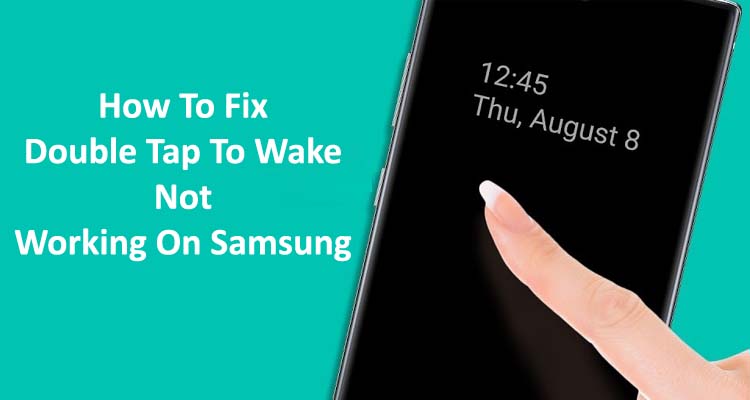
Well, Double tap to wake is a feature that gives you the ability to control your phone by double-tapping the screen.
Using this feature, you can easily wake up your phone by tapping anywhere on your device’s screen.
But many users complaining about why double tap to wake is not working on Samsung?
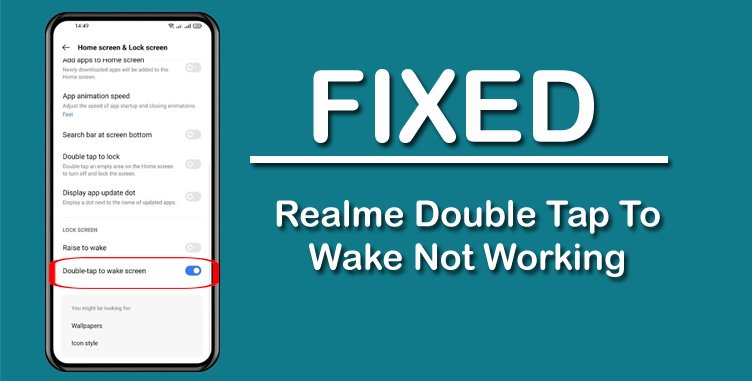
Is double tap to wake feature is not working on Realme phone? Are you looking for a way to fix the problem?
If “Yes”, then you have landed on the right web-page. This post teaches you how to fix double tap to wake screen not working on Realme phone.
Just read the post and follow the solutions and their steps.

When someone call you, you may not be able to pick up the call or you might be unaware of the incoming call. In such cases, you will be notified with a voicemail notification on your device.
However, after you receive and listen to that voicemail, the notification should go automatically. But it stays or stuck on status bar and doesn’t go away.
The same problems many Samsung users are facing. So, in this post, you going to get rid of voicemail notifications that won’t go away on Samsung S22 (Ultra/Plus)/S21 (Ultra/Plus).
Overview: Is your Android Keyboard haptic feedback not working? Are you looking for a solution to solve this problem? Well, you have landed on the right webpage. Here you will find effective solutions to fix haptic feedback not working on Android when typing.

Android Blue Screen Of Death (BSOD) has been seen by many users. Usually, it happens when you power on your phone by pressing the Power On key but your phone doesn’t boot up normally and gets stuck in a simple blue screen.
If you are also going through this problem then read and follow the solutions mentioned in this post to fix Android phone blue screen of death.